Managing groups
Using groups so access follows people's jobs rather than their names.
Who this is for: Administrators. Publishers can open this screen too, to see each group's members with View Members and manage the group's report access with Manage Access. Creating, editing, and deleting groups and changing their membership is administrator-only.
Go to Settings → Groups.
Why groups
Grant a report to fifteen people individually and you have created fifteen things to remember when someone joins, moves team, or leaves. Grant it to a group and there is one.
The pattern that works: groups named after what people do — Finance, Regional Managers, Board — with reports granted to the group. A new joiner is added to one group and picks up everything that comes with the job. A leaver is removed from it and loses all of it at once.
Create a group
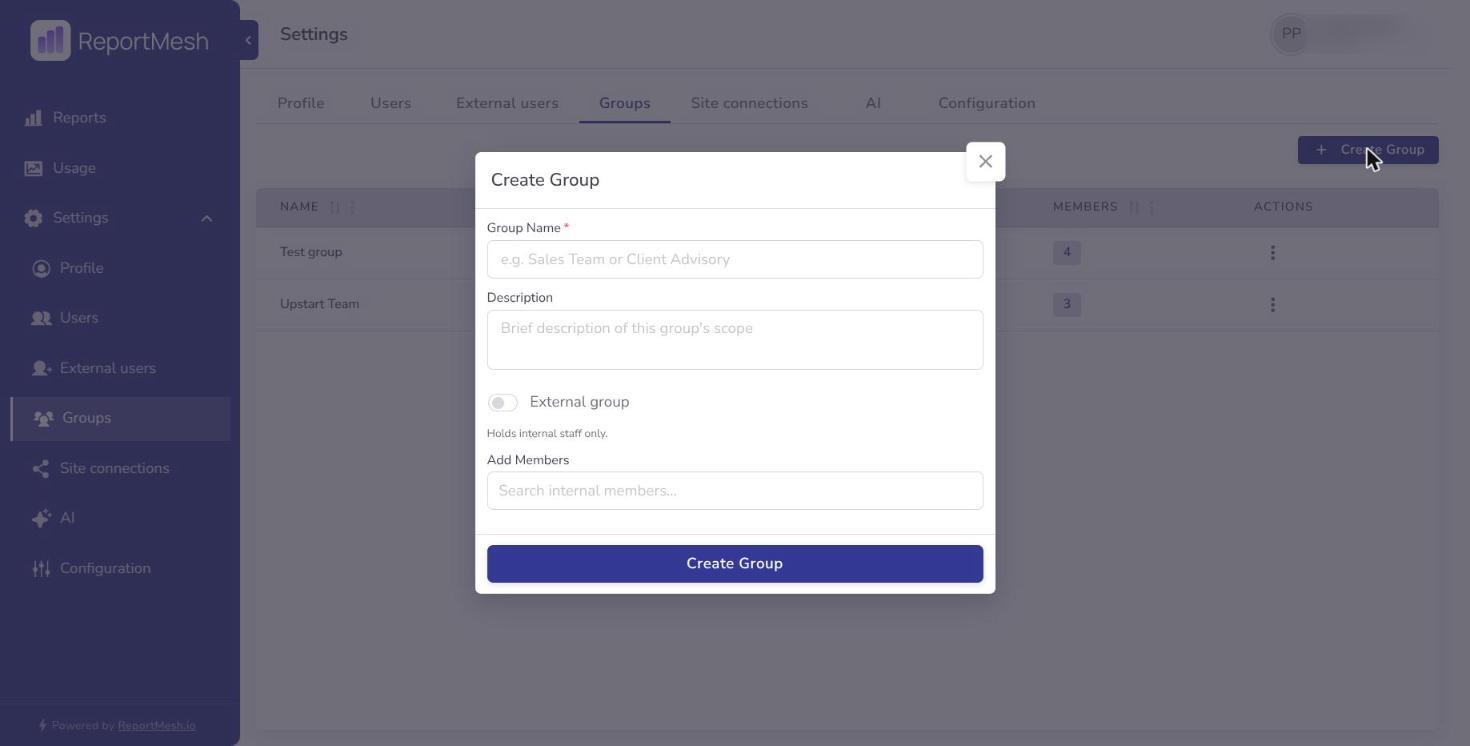
- Select the option to create a group.
- Fill in:
- Group Name — name it after the team or function, not the report.
Financesurvives;Sales Dashboard Viewersbecomes wrong the moment a second report is shared with the same people. - Description — who belongs in it, so the next administrator knows who to add.
- External group — mark it if the group is for external guests.
- Group Name — name it after the team or function, not the report.
- Save.
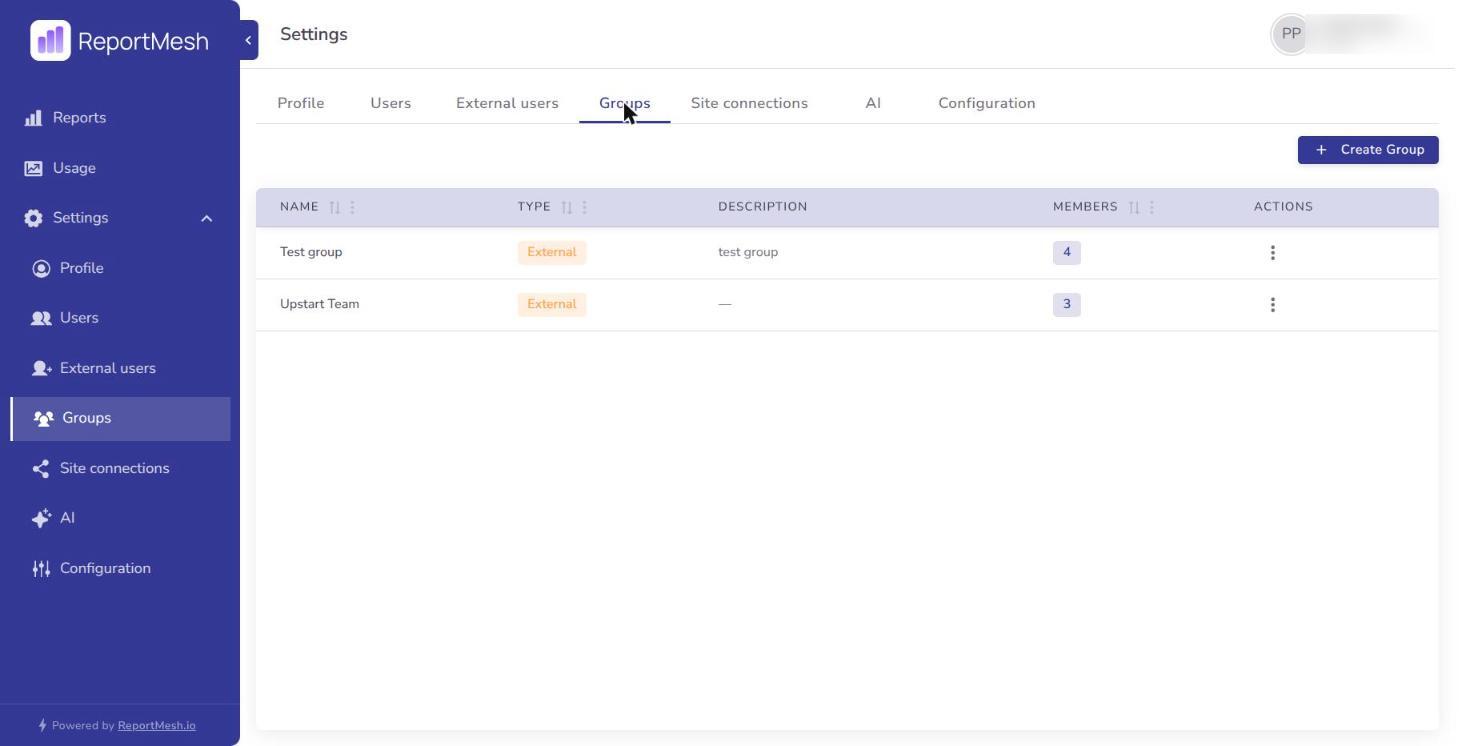
Groups are listed under Settings → Groups, with their type and member count.
Add and remove members
Open the group with Manage Members and use Add Members, then type part of a name or email to search. To take someone out, use Remove member on their row.
Changes take effect on their next page load. Someone removed from a group loses the reports that came with it, unless they also have access another way.
Internal and external groups
The External group flag separates groups for guests from groups for colleagues. Keep them distinct: it is what stops an external guest being swept into a grant intended for staff because their name happened to be in a list.
When sharing a report, groups appear under their own tab, and external users under theirs. See Sharing reports.
Groups grant access, never permissions to act
A group controls which reports its members can open. It never changes what they are allowed to do in the portal.
Adding someone to a group cannot make them a Publisher or an Administrator. Roles are set per person, so the answer to "who is an administrator?" is always a single readable list rather than something you have to reconstruct from group membership.
Deleting a group
Deleting a group removes it and the access its members had through it. Members keep any access granted to them by name, and their accounts are untouched.
Before deleting, check what the group can currently open. Access granted through a group vanishes with it, and a report that fifteen people relied on will simply be gone from their catalogue with no message explaining why.
Keeping groups honest
Groups drift. People change teams and nobody updates the membership, so review them periodically:
- Does each group still match a real team?
- Is anyone in a group whose job has moved on?
- Are there groups nobody has touched in a year?
The Usage screen helps — people with wide access and no activity are usually in groups they have outgrown.