Managing users
Bringing people into the portal, setting what they can do, and removing their access.
Who this is for: Administrators. Publishers can open both screens too, to look people up and manage their report access with Manage Access on a person's row. Everything else on this page — syncing, inviting, roles, enabling and disabling, AI chat, deleting — is administrator-only, and those controls are hidden from Publishers.
Two screens, because internal staff and external guests arrive by different routes:
- Settings → Users — colleagues from your organisation's directory.
- Settings → External users — guests from outside it.
Internal users
Bringing people in
Internal users are not created by hand. Select Sync from Entra ID and ReportMesh pulls people from your organisation's directory.
Sync is how joiners appear. It reflects the directory as it stands at the moment you run it, so a person added to the directory this morning shows up after the next sync, not before.
The user list
Full Name, Email, Status, Last Login, AI Chat, and Actions, filterable by All Roles and All Statuses.
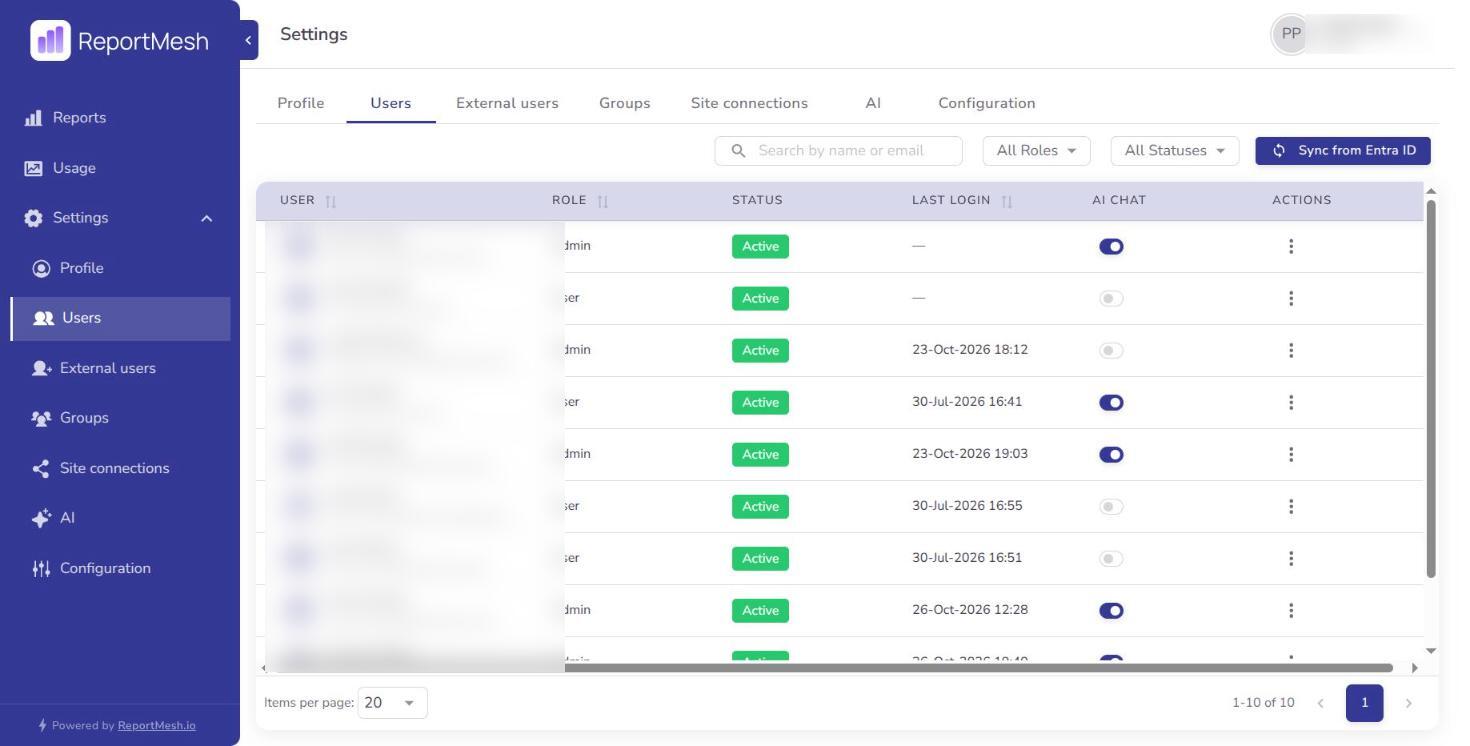
Internal accounts are either Active or Disabled, and the status filter offers those two. They arrive from the directory already able to sign in, so there is no invitation stage here as there is for guests.
Last Login is the column to sort by when reviewing access. People who have never signed in, or have not for months, are usually access you can withdraw.
Setting a role
Use the role control on the user. Three to choose from:
| Role | Give it to |
|---|---|
| User | Most people. Opens the reports shared with them. |
| Publisher | The reporting team — people who register reports and share what they registered. |
| Administrator | A deliberately small group. Full control of the portal. |
Keep the administrator group small. An administrator can grant themselves access to any report in the catalogue, so it is the role that decides who could see the organisation's numbers.
Two guardrails you will meet: you cannot remove your own Administrator role, and the last remaining administrator cannot be demoted or disabled. Both prevent locking everyone out — recovering from that is a configuration change and a restart, not something you can fix from within the app.
Disabling someone
Disable User stops someone signing in while keeping their account and their history. Enable User restores it.
Disable is the right action for a leaver. It is immediate and reversible, and it keeps the usage record intact.
Removing someone from the directory does not by itself disable them here until you sync, so for an urgent departure disable them in ReportMesh directly rather than waiting.
AI Chat
The AI Chat column enables AI for a person individually. It is granted per person because each question costs money, and it composes with the per-report toggle in Sharing reports: both must be on, and the person must be able to view the report.
Being an administrator does not enable AI for you automatically.
External users
Settings → External users covers guests. They can only ever hold User — there is no external administrator or publisher, by design. If you need someone outside the organisation to manage content, they need an internal account.
Inviting a guest
Guests are listed under Settings → External users, with Invite External User above the list.
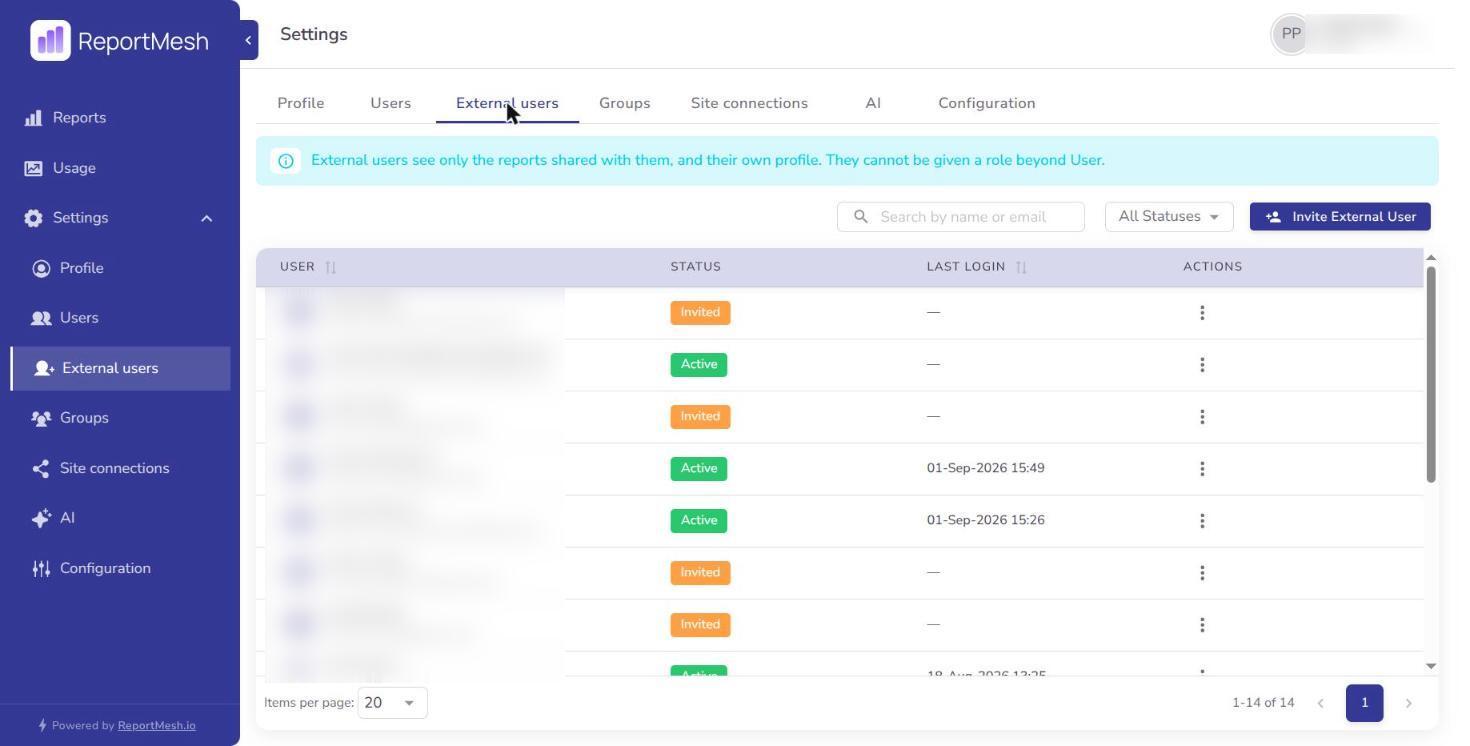
- Select Invite External User.
- Enter their email address.
- Select Send Invitation.
They receive an invitation to set a password and configure an authenticator app. There is no self-service sign-up: someone can only get in if you invite them.
Invited is not the same as granted. A new guest sees an empty catalogue until you share reports with them — see Sharing reports.
Guest statuses
A guest account is in one of three states, and the Status column and its filter use the same three:
| Status | What it means |
|---|---|
| Invited | Invited, but has not finished setting up a password and authenticator yet. |
| Active | Set up and able to sign in. |
| Disabled | Blocked from signing in. |
The actions offered depend on the state. Resend Invite appears only on an Invited guest and sends the invitation again — the one to reach for when someone says it never arrived, or the temporary password has gone stale. Disable User appears on an Active guest, and the option to enable them on a Disabled one.
A guest sitting at Invited long after you sent it has not got in at all, so review that column as well as Last Login: an account that never became Active is either a wrong address or someone who no longer needs access.
Disabling and deleting
Disable User blocks sign-in and is reversible. Delete removes the account entirely and is not.
Prefer disable. Deleting loses the account and its history, and for a contractor who may return, or any question later about who saw what, that history is the thing you will want. Delete when someone should genuinely leave no trace, and expect to re-invite from scratch if they come back.
A person can hold both an internal and an external account on one email address. They are separate accounts with separate passwords and separate reports, and disabling one leaves the other working. When withdrawing someone's access, check both screens.
Reviewing access periodically
Worth doing on a schedule:
- Users sorted by Last Login — dormant accounts to disable.
- External users — guests whose work has finished, and anyone still showing Invited.
- The administrator list — still as short as it should be?
- Usage — people granted plenty and using none of it.