Connecting SharePoint sites
Pointing ReportMesh at the SharePoint sites your Excel reports live in.
Who this is for: Administrators. Part of it needs a SharePoint or Global administrator, who may well be someone else.
Go to Settings → Site connections.
Power BI reports do not need any of this. It applies only to Excel workbooks, which live in SharePoint.
Why this exists
ReportMesh cannot read a SharePoint site until it has been given access to that specific site. It holds no blanket permission over your tenant, so each site is opened up deliberately, one at a time, and nothing outside those sites is reachable.
Until a site has been through this, Publishers cannot register any Excel report from it.
It takes two people
This is the part worth understanding before you start, because it is where the process stalls:
| Step | Who does it | Where |
|---|---|---|
| 1. Connect the site | You | ReportMesh |
| 2. Grant access to it | A SharePoint or Global administrator | Microsoft's tools, not ReportMesh |
| 3. Register reports from it | A Publisher | ReportMesh |
Connecting a site grants nothing. It records the site and gives you the instructions for step 2. Only step 2 gives ReportMesh any access, and ReportMesh cannot perform it for you — Microsoft requires a signed-in administrator holding full control of the site, and offers no way for an application to do it on their behalf. There is no consent popup that would shortcut this.
If you hold SharePoint or Global Administrator yourself, you are both people and can do steps 1 and 2 back to back.
Connect a site
- Go to Settings → Site connections.
- Choose to connect a site.
- Enter the Site URL — the site itself, not a file or folder inside it. For example
https://yourtenant.sharepoint.com/sites/Finance. - Confirm.
The site appears in the list with its proper name, and Access showing Not granted. That is expected at this point, not a failure.
If the URL will not resolve, check it is complete and correctly spelled, and that it names a site rather than a document library or a file within one.
Grant access to it
- On the site's row, open How to grant access.
- Send the commands to whoever holds SharePoint or Global Administrator in your organisation. They also need to be a Site Collection Administrator on that site.
- When they confirm they have run them, return to the list and check the Access column.
The dialog gives three Microsoft Graph PowerShell commands — install the module, connect, grant — filled in with your site and ReportMesh's own application identity, so there is nothing to edit before running them. Each block copies with one click.
The access status is checked live every time you look at it. There is no cached value to go stale and nothing to refresh, so as soon as the grant is in place the column reads Granted.
The grant is read-only and applies to that one site. It does not give ReportMesh access to any other site, and it does not change anything about who in your organisation can see the site.
Reading the list
| Column | What it tells you |
|---|---|
| Site | The site's name, with its URL underneath. |
| Access | Granted, Not granted, or Unknown if the check could not be completed. |
| Connected | When it was connected. |
| Reports | How many Excel reports are registered from this site. |
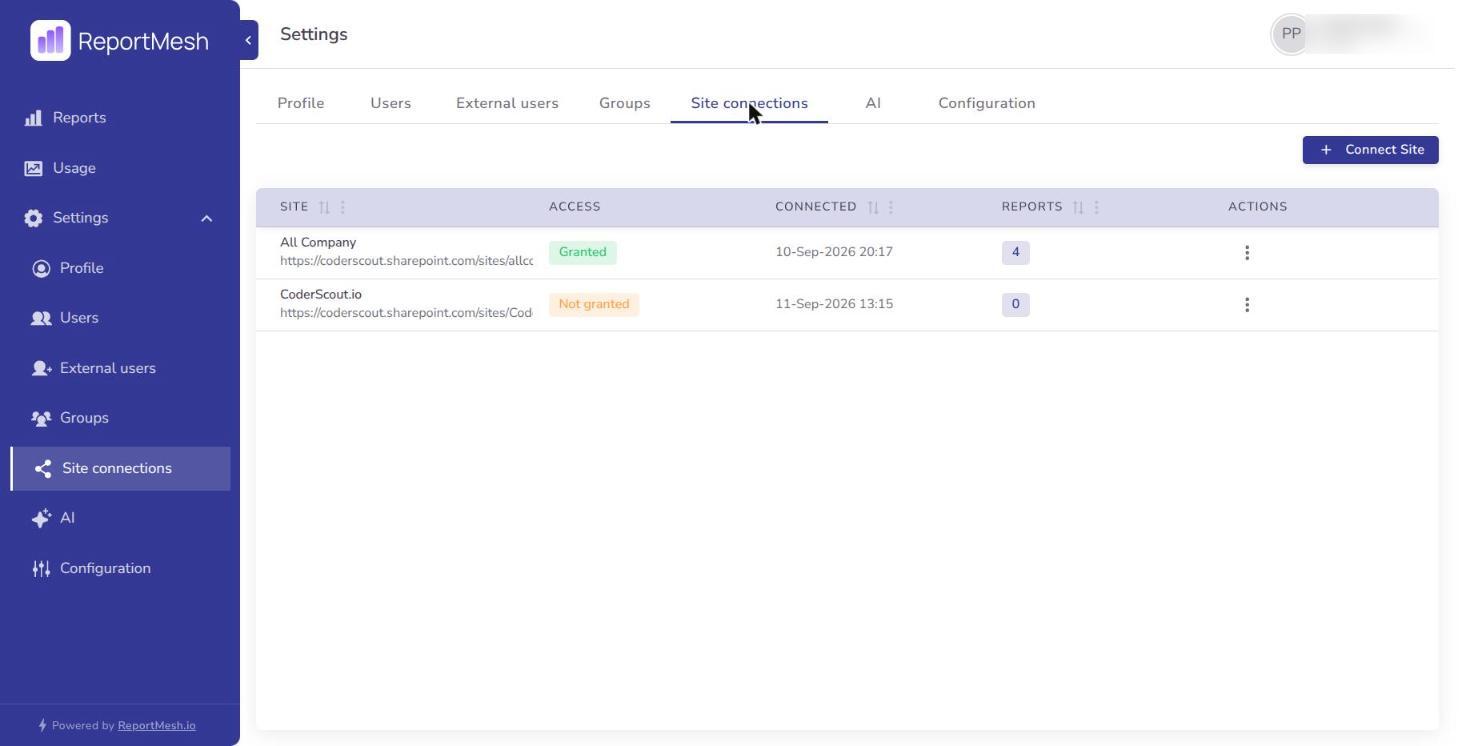
Each row's Actions menu holds How to grant access or How to revoke access, and Disconnect.
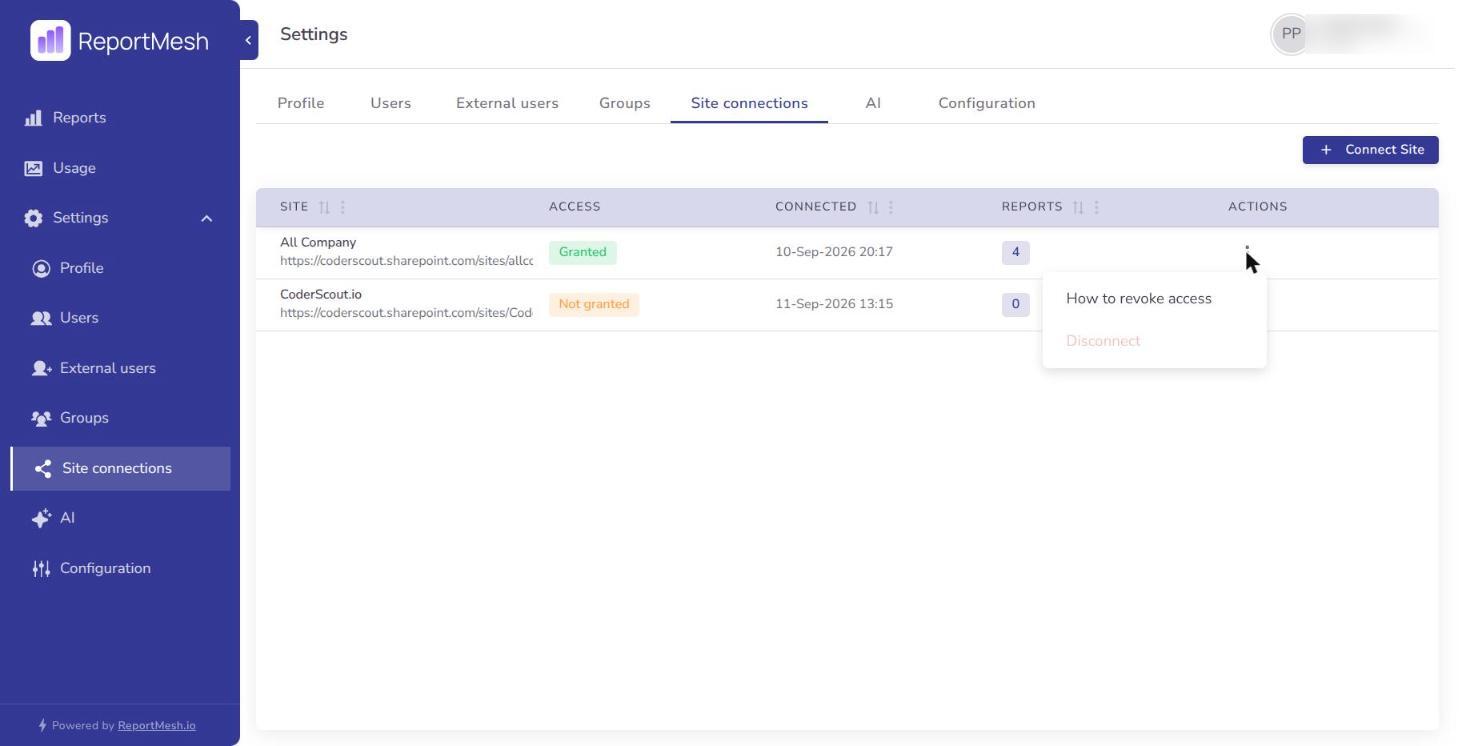
A site sitting at Not granted long after you connected it is the common stall: step 2 has not happened. Chase it, or the Publishers waiting on it will be told to ask you.
Unknown means ReportMesh could not reach Microsoft to check just then, rather than that access is missing. Look again shortly.
Disconnect a site
Disconnecting is refused while the site is still granted. ReportMesh will not stop tracking a site it can still read, so the order is fixed:
- Open How to revoke access on the site's row and have an administrator run those commands. The revoke takes one manual step: they look up the permission id from the listing command and paste it into the removal command.
- Once Access reads Not granted, disconnect the site.
Disconnecting a site deletes every Excel report registered from it. The confirmation tells you how many before you commit, and it cannot be undone.
The workbooks themselves are untouched in SharePoint. What is lost is the catalogue entries and the sharing set up on them, and re-registering later does not bring the sharing back.
Check the Reports column before disconnecting anything. If the number is higher than you expect, find out what those reports are first.
When a Publisher cannot register a report
Almost always one of two things, and the message they see says which:
- The site is not connected. Connect it, then follow the grant through.
- The site is connected but not granted. Step 2 is outstanding.
Both are yours to resolve rather than theirs. Once Access reads Granted, ask them to try again — nothing else needs doing on the report itself.
Routine review
Worth doing alongside the user review in Managing users:
- Sites showing Not granted — either finish the grant or disconnect them.
- Sites with 0 reports — connected for a reason that has passed, most likely.
- Sites whose reports nobody opens — see Usage.