Finding your way around
After signing in you land on Reports. The side panel on the left is how you move between the main areas.
The side panel
| Item | What it holds | Who sees it |
|---|---|---|
| Reports | The catalogue of everything shared with you | Everyone |
| Usage | Charts and tables showing how reports are being used | Publishers and Administrators |
| Settings | Your profile, and the administration screens | Everyone (contents vary) |
Under Settings you will find:
- Profile — your display name and email. Everyone has this.
- Users, External users, Groups — Publishers and Administrators. Publishers see the people and groups and manage their report access; changing accounts and groups is for administrators.
- Site connections, AI, Configuration — administrators only.
If you only see Reports and Settings → Profile, you hold the User role. That is the normal experience for most people.
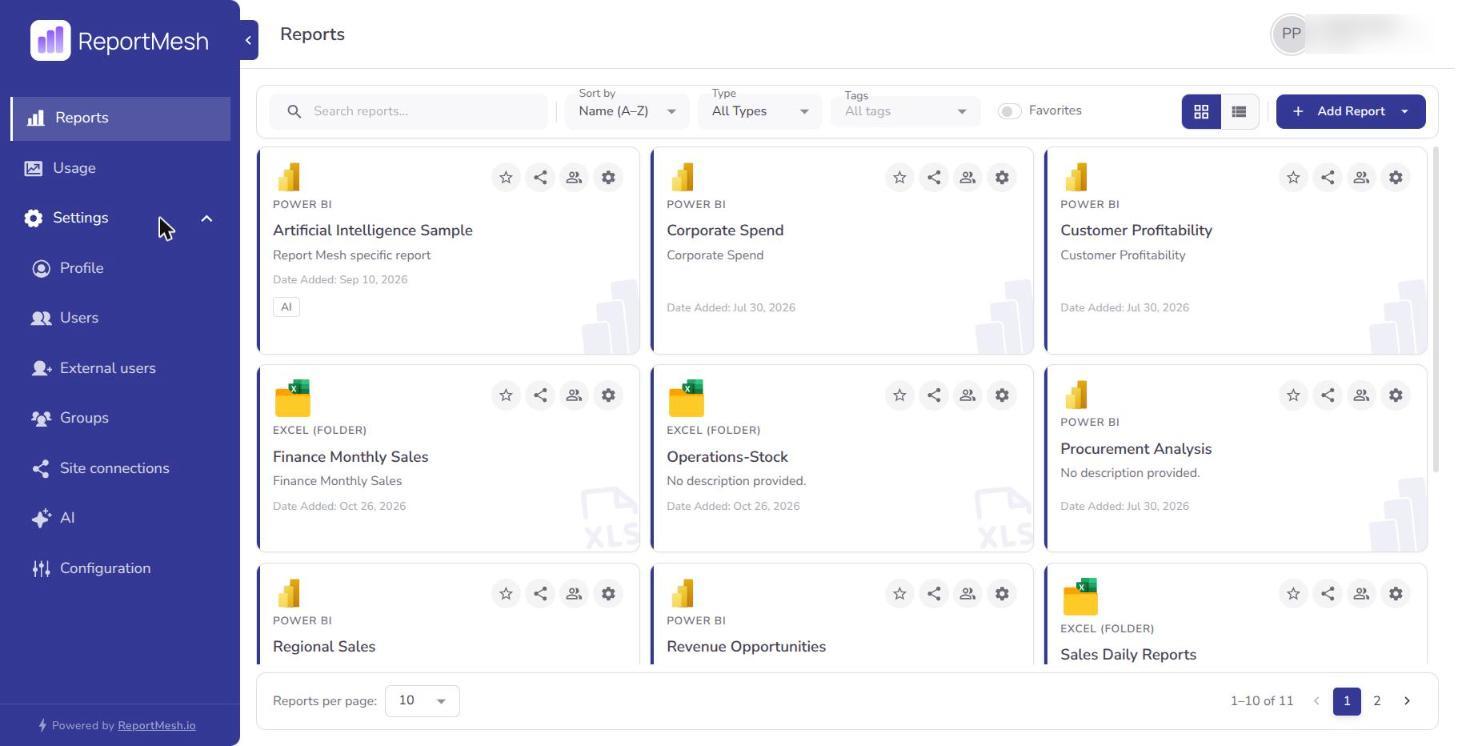
The Reports page
The catalogue is the heart of the application. Across the top you have:
- A search box — type any part of a report's name.
- A Type filter — show everything, or narrow to Power BI or Excel.
- A Tags filter — show reports carrying any of the tags you pick. It appears once reports have been tagged.
- A Favorites toggle — show only the reports you have starred.
- A Sort by control — reorder the catalogue.
- Grid view and List view buttons — switch between cards and a denser table.
Your choice of grid or list, and the filters you set, make finding a particular report quicker but change nothing about who can see what.
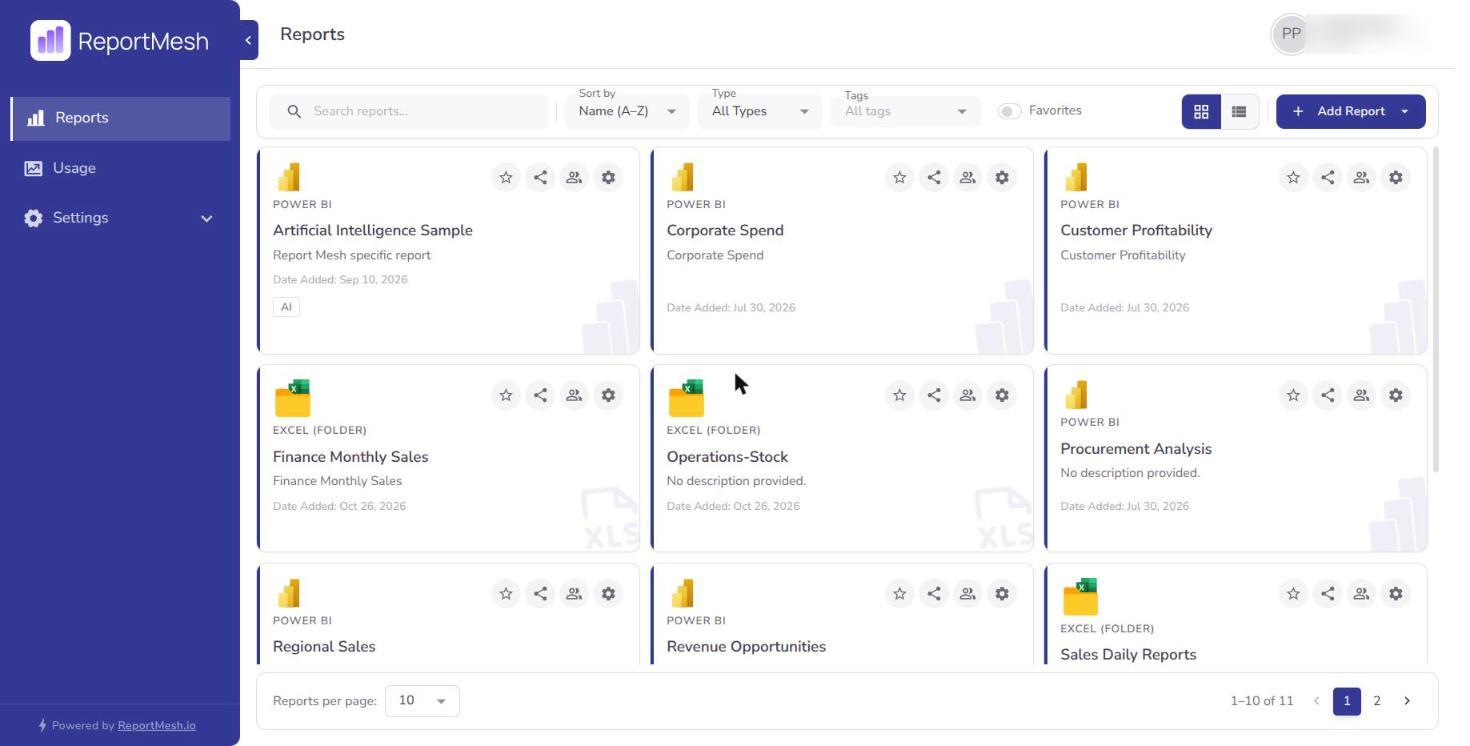
If the catalogue is empty
An empty catalogue is normal on your first day. It means nothing has been shared with you yet, not that something is broken.
Reports you have not been granted do not appear anywhere — not greyed out, not locked, simply absent. So if a colleague sends you a link to a report you have not been given, you will not be able to open it. Ask them to share it with you, or ask an administrator.
If you have filters applied you may instead see No reports match your filters. Clear the search box, set Type back to All Types, and clear any tags to check.
Signing out
Use the account menu to sign out. If you signed in with your Microsoft account, you may also need to sign out of Microsoft separately on a shared computer — signing out of ReportMesh alone leaves your Microsoft session active, and the next person could sign straight back in.