Adding a report to the catalogue
Registering a Power BI report or an Excel workbook so colleagues can find it.
Who this is for: Publishers and Administrators. If you hold the User role you will not see these options.
Registering a report points ReportMesh at something that already exists in Power BI or SharePoint. It does not copy the data, and it does not move the file — the report stays where it is and ReportMesh displays it.
Add a Power BI report
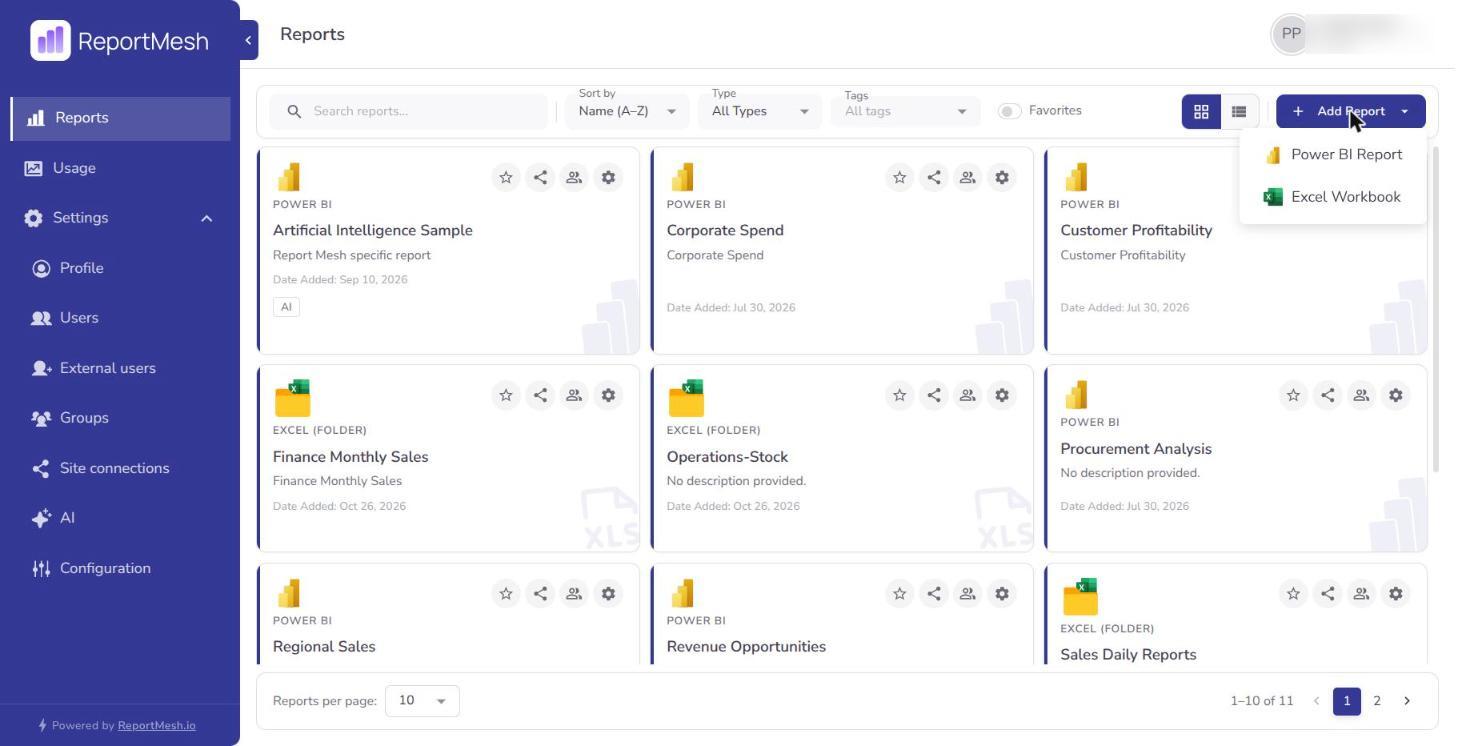
- Go to Reports.
- Select Add Report, then Power BI Report.
- Fill in the form:
| Field | What to enter |
|---|---|
| Workspace | The Power BI workspace holding the report. Choose from the list. |
| Report | The report within that workspace. The list fills in once a workspace is chosen. |
| Name | What the report is called in ReportMesh. This is what people search on. |
| Description (optional) | What the report covers, and who it is for. |
- Save.
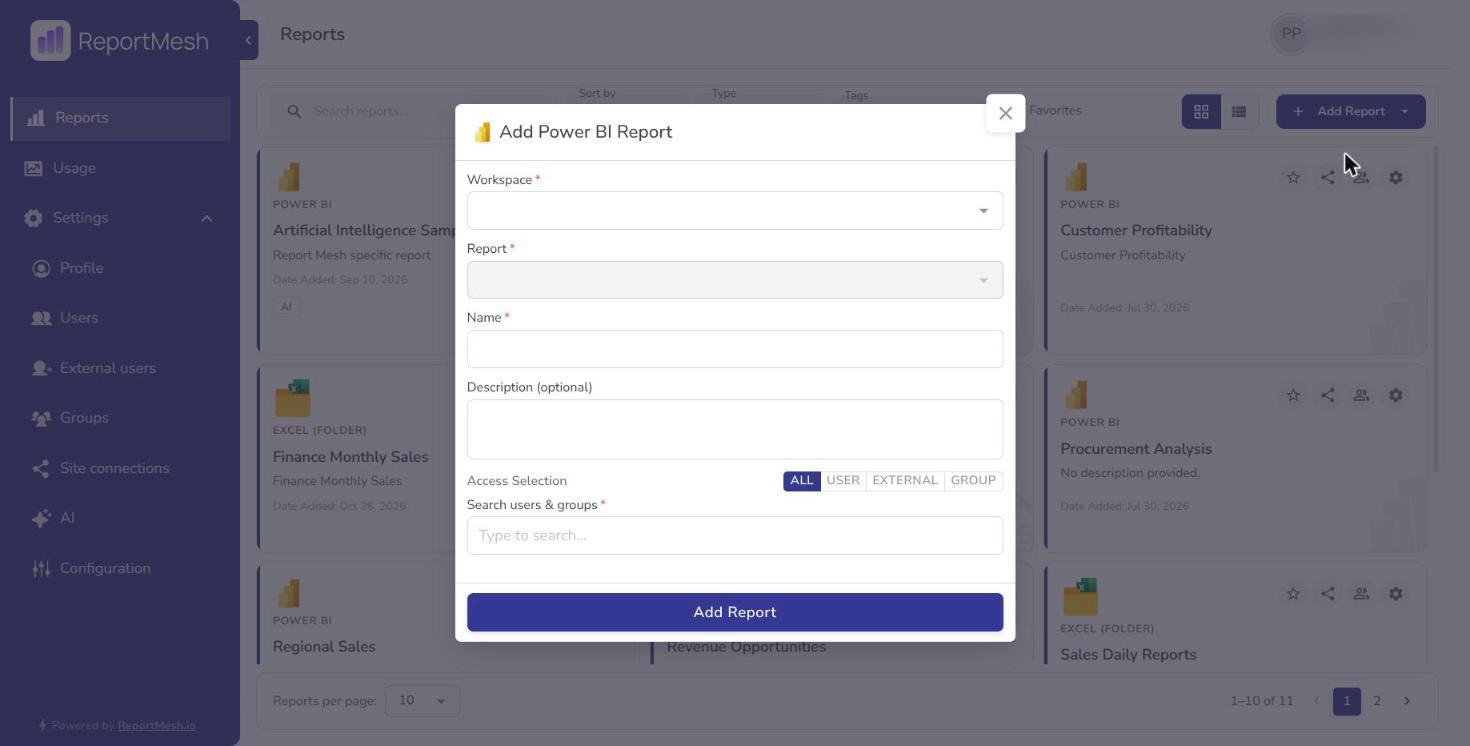
Workspace and Report are picked from lists rather than typed, so you do not need to hunt down any identifiers. If a workspace you expect is missing from the list, ReportMesh has not been granted access to it — an administrator needs to sort that out before the report can be registered.
Reports with row-level security
When the report you pick restricts rows with row-level security, the form gains an RLS Roles
field. Enter each role name exactly as defined in the report, case included: the names come from
whoever built the report in Power BI and cannot be read from Power BI itself. Type each one and
press Enter. At least one is required.
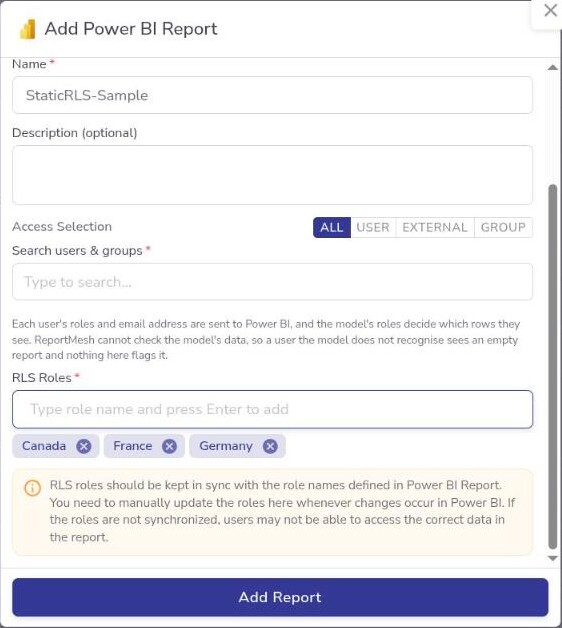
How roles are assigned, and how to check what each person sees, are in Row-level security.
Add an Excel workbook
- Go to Reports.
- Select Add Report, then Excel Workbook.
- Fill in the form:
| Field | What to enter |
|---|---|
| Name | What the workbook is called in ReportMesh. |
| Description (optional) | What it covers. |
| SharePoint folder/workbook link | The SharePoint or OneDrive link. Either a single workbook, or a folder — see below. |
- Select Add Report.
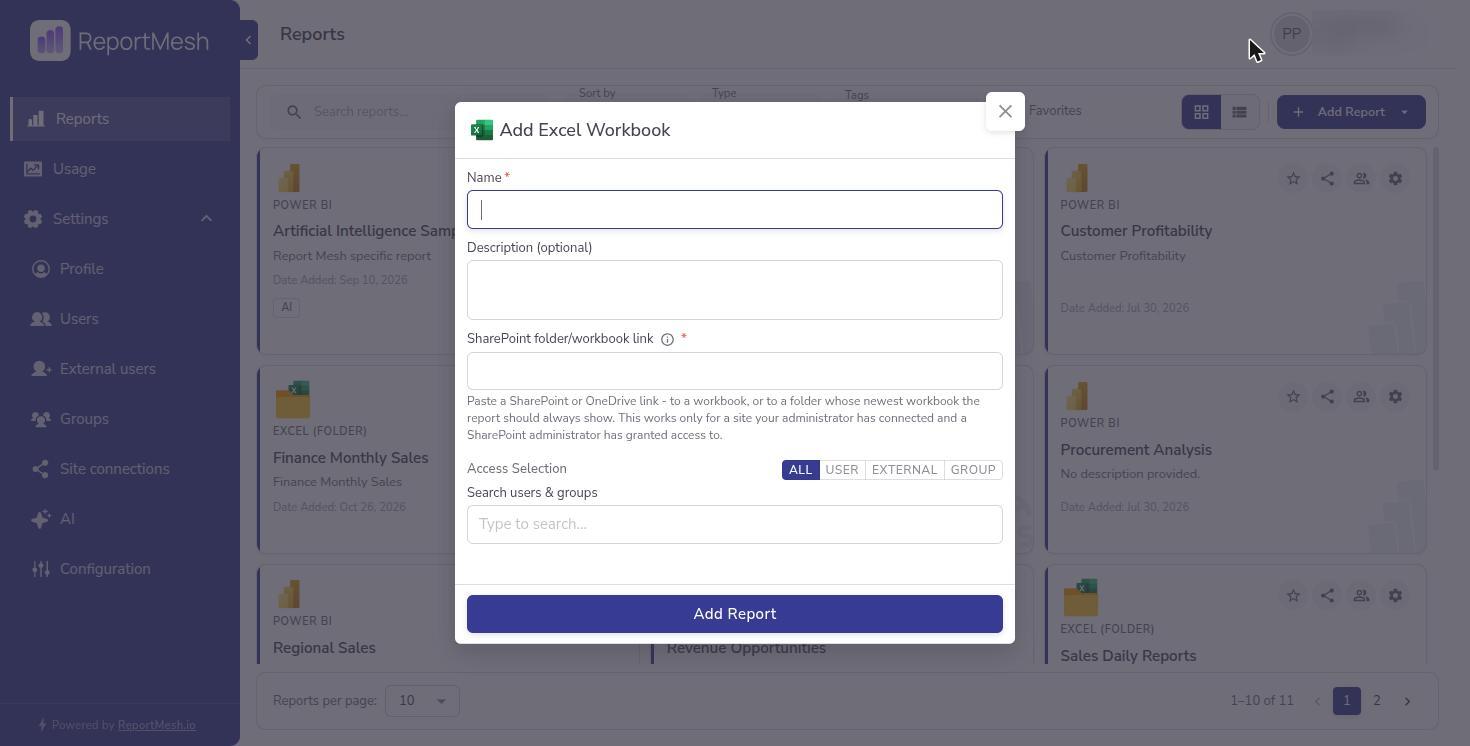
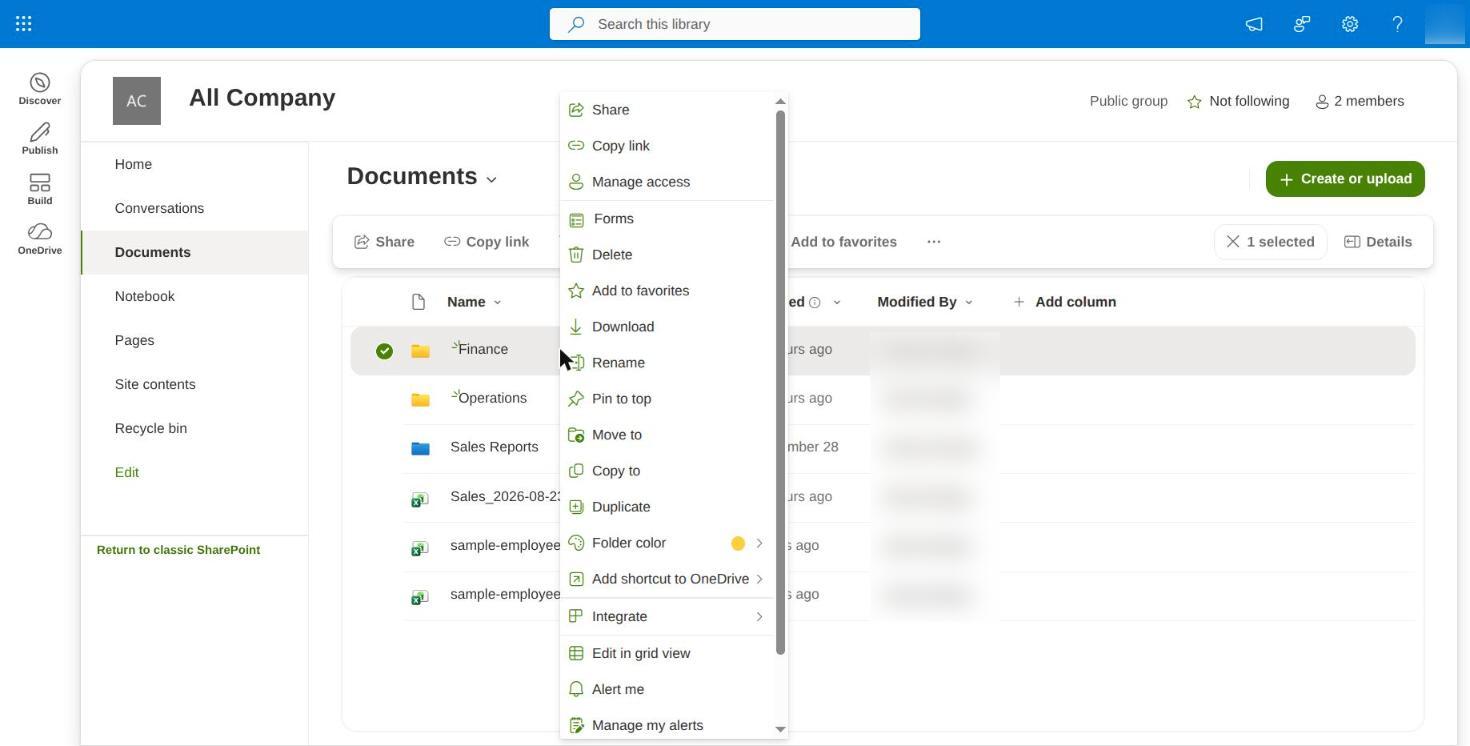
To get the link, open the workbook or folder in SharePoint and copy the address from your browser, or use SharePoint's own copy-link option.
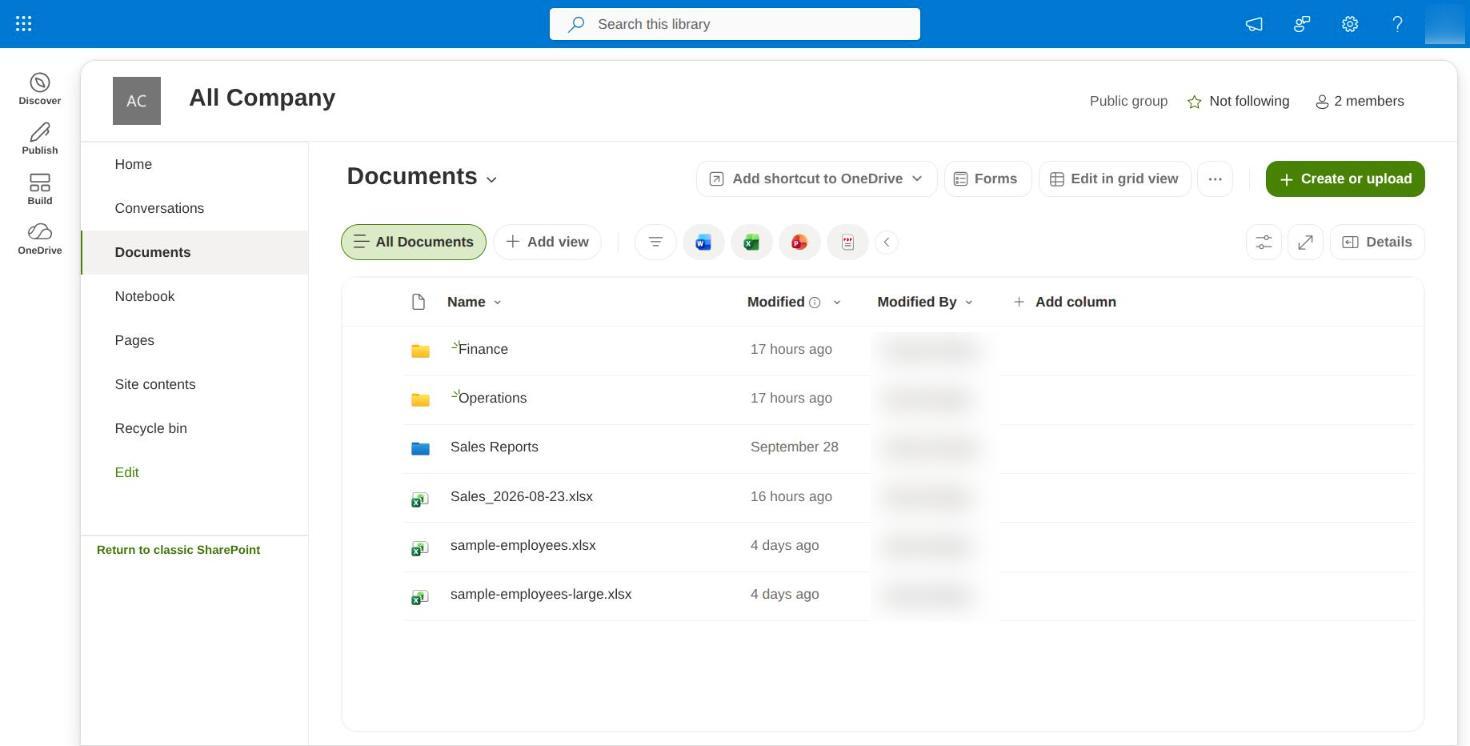
Select the file or folder and choose Copy link, or right-click it.
There is nothing to sign or consent to here. You paste the link and save.
The site has to be connected first
ReportMesh reads a SharePoint site only once an administrator has connected it and a SharePoint administrator has granted access to it. That is set up once per site, before you register anything from it, and it is not something you do from this form.
So if registration fails with a message about the site, the link is not the problem. Ask an administrator to connect the site — see Connecting SharePoint sites — and try again once they confirm it is done.
Everything else fails for the ordinary reasons: a link that points nowhere, or to something that is not a workbook.
A single workbook, or a folder
You do not choose between the two. Paste the link and ReportMesh works out which it is.
Link a folder where the report is reissued as a new file each period. The report always shows the folder's most recently created workbook, and readers can open earlier ones from the Version control in the viewer — so a monthly report keeps working without being re-registered. How to lay the folder out is in Rolling Excel reports.
Worth knowing either way: ReportMesh's access is granted per site, not per file, so linking a single workbook rather than a folder does not narrow what the application can read. What it changes is what this report shows — one fixed workbook, or whichever is newest.
Writing a good name and description
The name is what people type into the search box, so name reports the way colleagues talk about them
rather than the way the source file is named. Monthly Sales by Region will be found; MSR_v4_FINAL
will not.
Descriptions are worth the thirty seconds. A catalogue where every card reads No description provided. forces people to open reports one by one to work out which is which.
After registering
A newly registered report is visible to you, because you created it, and to administrators. It is not yet visible to anyone else — registering and sharing are separate steps. See Sharing reports.
What you can change afterwards
You can edit a report's name, description, and tags, and remove it from the catalogue.
Tags
Tags sits in the edit view of a report's details. Type to pick an existing tag, or type a new
name and press Enter to create one. Tags are matched regardless of case, so typing finance reuses
an existing Finance rather than creating a second.
Tags are how readers narrow the catalogue with the Tags filter — see Finding a report. They organise, they do not restrict: tagging a report shares it with nobody, and readers only ever see tagged reports already shared with them.
Every tag name is visible to every signed-in user, including external guests, whether or not they can see the reports it labels. Name tags for subject matter, never for something confidential such as an unannounced project.
The SharePoint link
For an Excel report, the details view shows Publishers and Administrators the SharePoint Link it was registered from, exactly as it was entered, with buttons to Copy link and Open in SharePoint. Use it to find the source workbook or folder when someone asks where a figure comes from. Users do not see it.
Opening it goes through your own SharePoint permissions, not ReportMesh's, so it will not open for you if you have no access to that site yourself.
Removing a report
Removing a report from ReportMesh removes the catalogue entry and the access grants that go with it. Excel and Power BI reports are removed the same way, with nothing extra to confirm.
Removal does not delete the underlying Power BI report or the workbook in SharePoint — those are untouched, and ReportMesh's access to the site is unaffected. Re-registering restores the entry, but the sharing you had set up does not come back.
Publishers and Administrators can edit and remove any report in the catalogue, not only the ones they registered themselves. There is no separation between Publishers, so check with whoever registered a report before changing or removing it — Added By in the report's details names them.