Finding a report
Searching, filtering, and sorting the catalogue, and using favourites to keep the reports you need close at hand.
Who this is for: everyone.
Search by name
Type any part of the report's name into the Search reports… box at the top of the Reports page. The catalogue narrows as you type.
Search matches the report's name as it appears in ReportMesh, which is chosen by whoever registered it. That is not always identical to the file name in SharePoint or the report name in Power BI, so if a search comes up empty, try a shorter fragment.
Filter by type
The Type filter has three settings:
- All Types — the default.
- Power BI — interactive Power BI reports only.
- Excel — SharePoint Excel workbooks only.
Filter by tag
Publishers and Administrators can label reports with tags — Finance, Monthly, Board — and the
tags show on each report card and row. Once any report has been tagged, a Tags filter appears
beside Type.
- Open Tags. Each tag shows how many of the reports you can see carry it.
- Tick the tags you want. Where there are more than a handful, Search tags… narrows the list.
- Select Apply, or click away from the list.
The filter shows reports carrying any of the selected tags, not all of them, so ticking more
tags widens the catalogue rather than narrowing it. The tags in force sit under the toolbar as chips
labelled Tagged; remove one with its cross, or Clear tags to drop them all. Press Esc with
the list open to discard what you ticked.
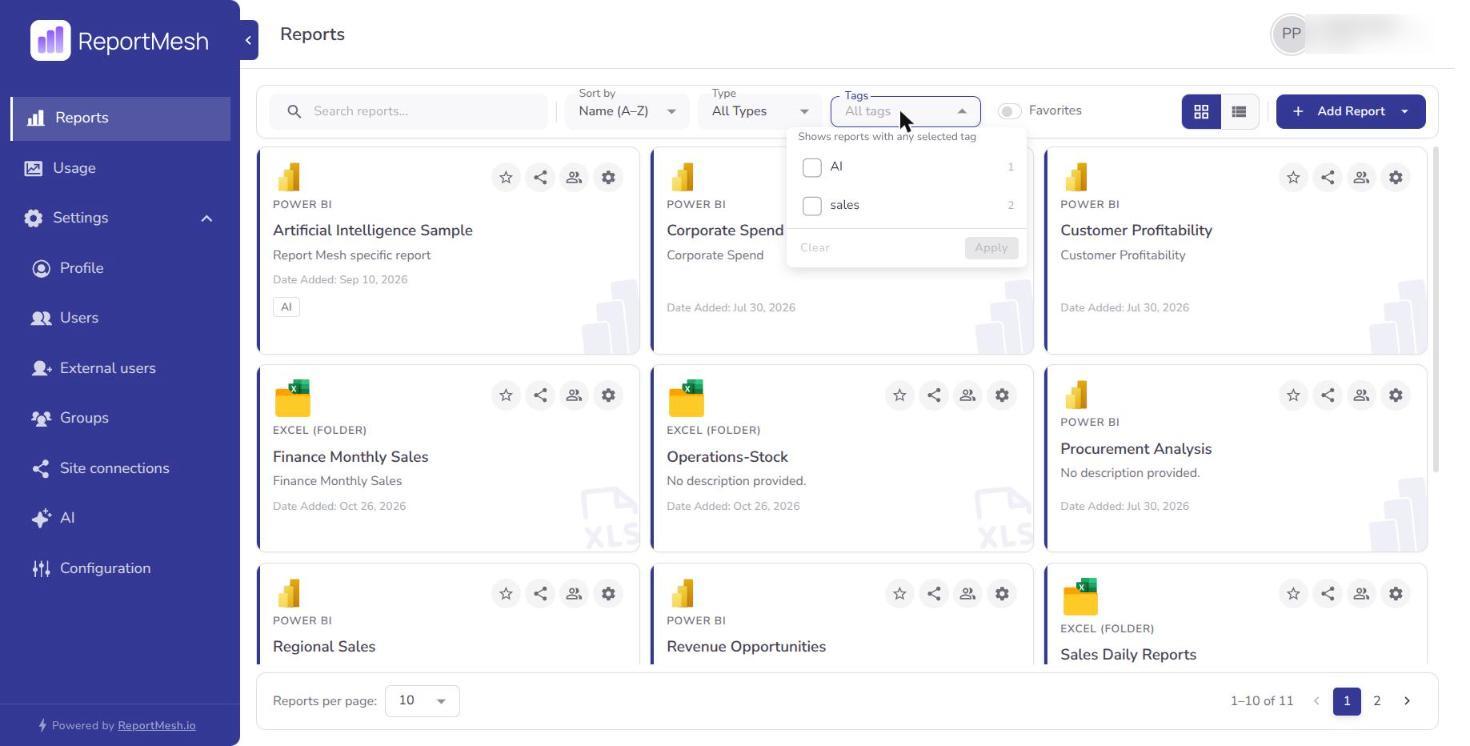
A tag with no reports you can see is listed but cannot be ticked. Tag names are shared across the whole catalogue, so you may see a tag that only labels reports shared with other people.
Sort the catalogue
Sort by reorders what you are looking at. Combine it with search and filters — they apply together, not instead of one another.
Switch how the catalogue looks
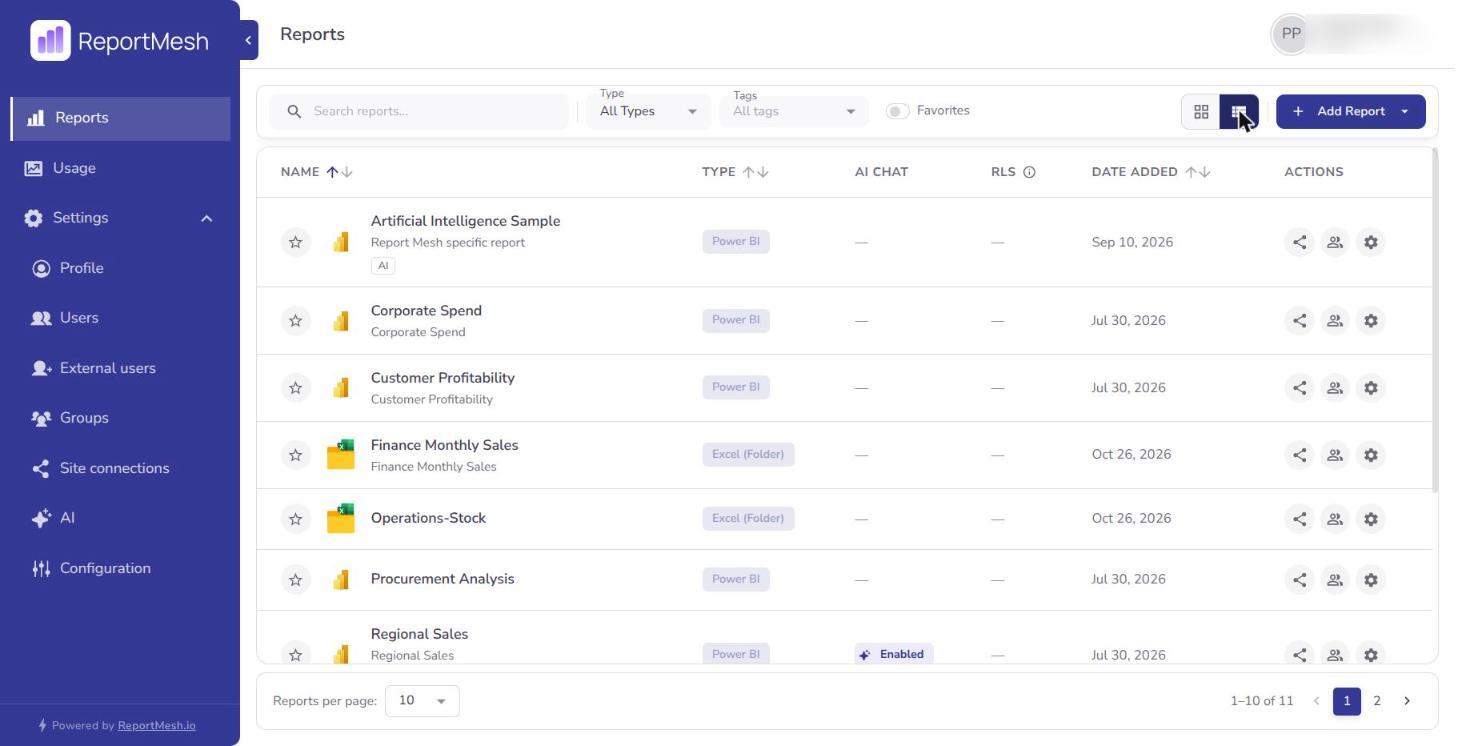
Two buttons switch the layout:
- Grid view — cards, with descriptions visible. Better for browsing.
- List view — a denser table. Better for a long catalogue you know well.
Your choice is a display preference and changes nothing about access.
Favourites
Starring the handful of reports you open constantly saves scrolling.
- Hover over a report card.
- Select the star — Add to favorites.
- To find them again, switch on the Favorites toggle at the top of the page.
Select the star again — Remove from favorites — to unstar. Favourites are personal to you: no one else sees what you have starred, and starring a report does not share it.
Share a link to a report
Report cards offer a copy-link action, which confirms with Report link copied. Paste it into chat or email as a pointer to a specific report.
The link is a pointer, not a grant. Whoever you send it to still needs the report shared with them before they can open it — otherwise the link will not work for them. To actually give someone access, see Sharing reports, or ask an administrator.
Report details
Report cards open a details view showing the full description, its tags, who added it to the catalogue (Added By), and the rest of its metadata. Where no one has written a description, you will see No description provided. — worth knowing so you do not read it as a fault.
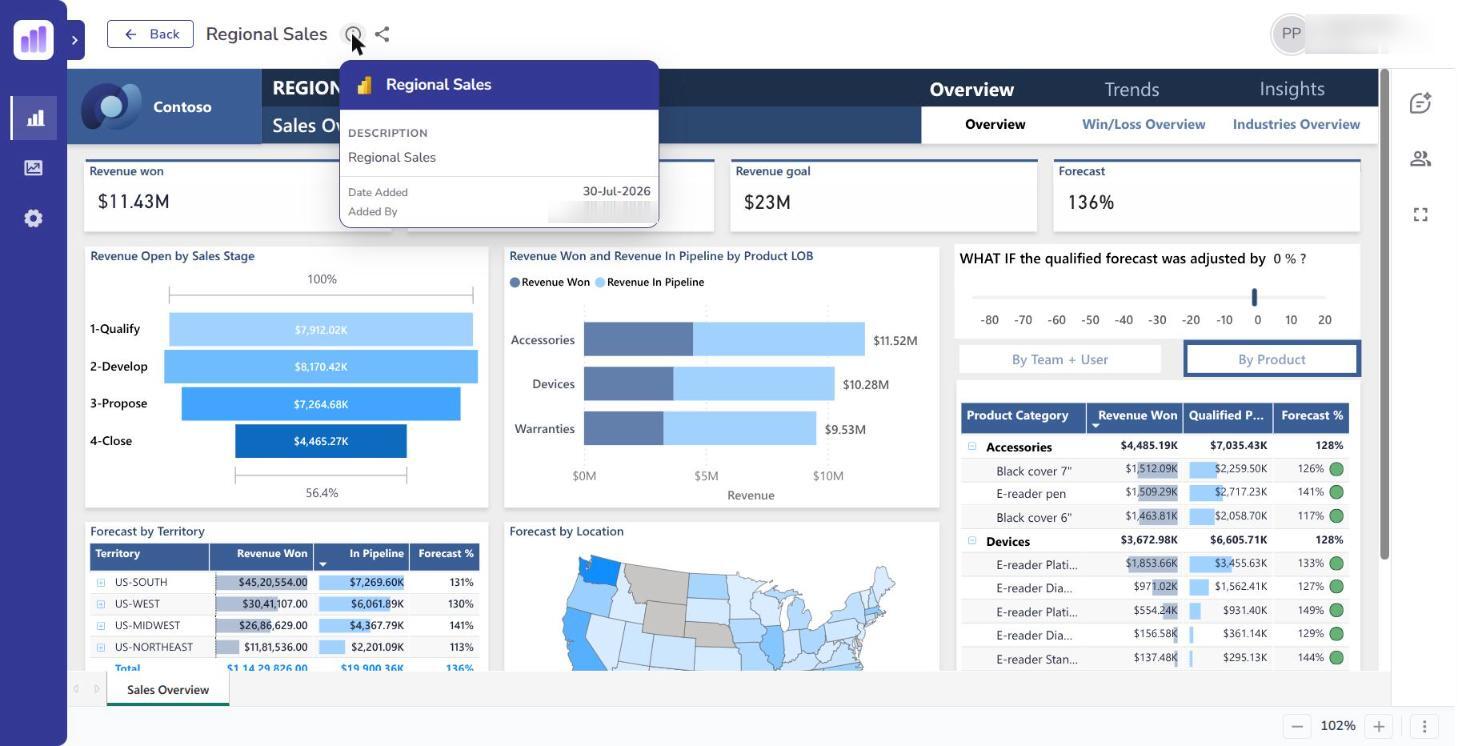
Added By is left out where the person who added the report has since left, and for external guests, who do not see the names of staff inside the organisation.
When you cannot find something
If you have searched and cleared your filters and a report still is not there, it has not been shared with you. Ungranted reports are absent from the catalogue rather than visible-but-locked, so there is nothing to request access to from within the app. Ask the report's owner or an administrator directly.