Rolling Excel reports
Setting up a SharePoint folder so that an Excel report registered against it stays correct without anyone touching ReportMesh.
Who this is for: Publishers and Administrators, and whoever maintains the job or process that produces the files.
A rolling report is an Excel report registered against a folder instead of a single workbook. It opens on the newest Excel file in the folder and offers the earlier ones as previous versions. Use it for a report that is refreshed often and always has the same structure: a daily sales extract, an hourly stock position, a weekly pack. Registering one is covered in Adding a report.
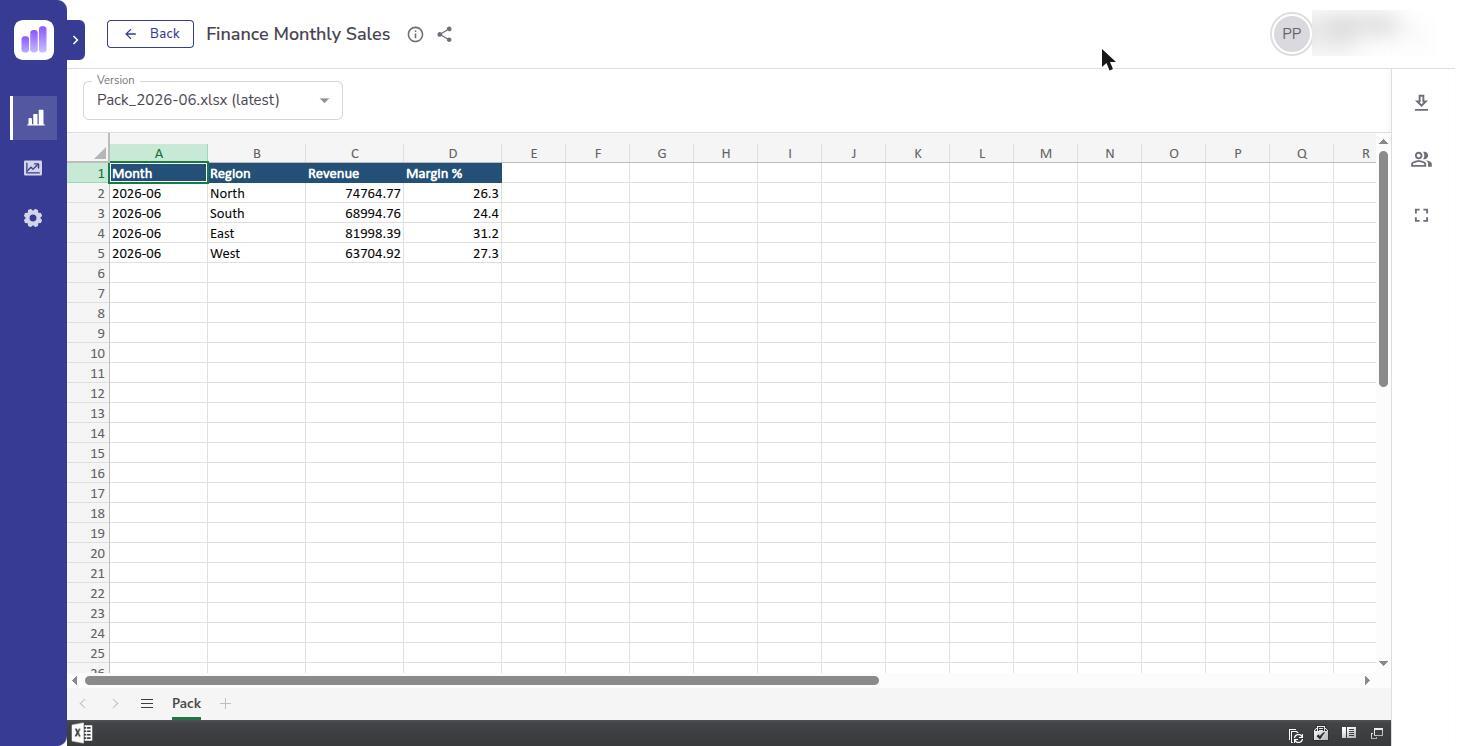
How the report chooses a file
The rest of this page follows from the rule.
- The folder is read when someone opens the report, and the answer is kept for about five minutes. A new file appears on the first open after that. Nothing is scheduled, and nothing expects a file on any particular day.
- The newest file is the one with the latest created date, not the latest modified date. Editing an older file does not make it current.
- Only Excel files count. Other files in the folder are ignored.
- Filenames play no part in the choice.
Folder or single workbook
The deciding question is what the producing job does with the file on each run.
| The job… | Register | Because |
|---|---|---|
| Creates a new file each run, and earlier files are kept | The folder | The report follows the newest file, and the earlier ones become previous versions. |
| Overwrites or updates the same file each run, with the same name and location | The workbook | The file's identity never changes, so there is nothing for a folder to track. People always open the current content. |
A folder holding one constantly overwritten file gains nothing: it has no history to offer. Choose the folder when people need to reach earlier versions, and the workbook when only the current state matters.
Structure the folders in SharePoint
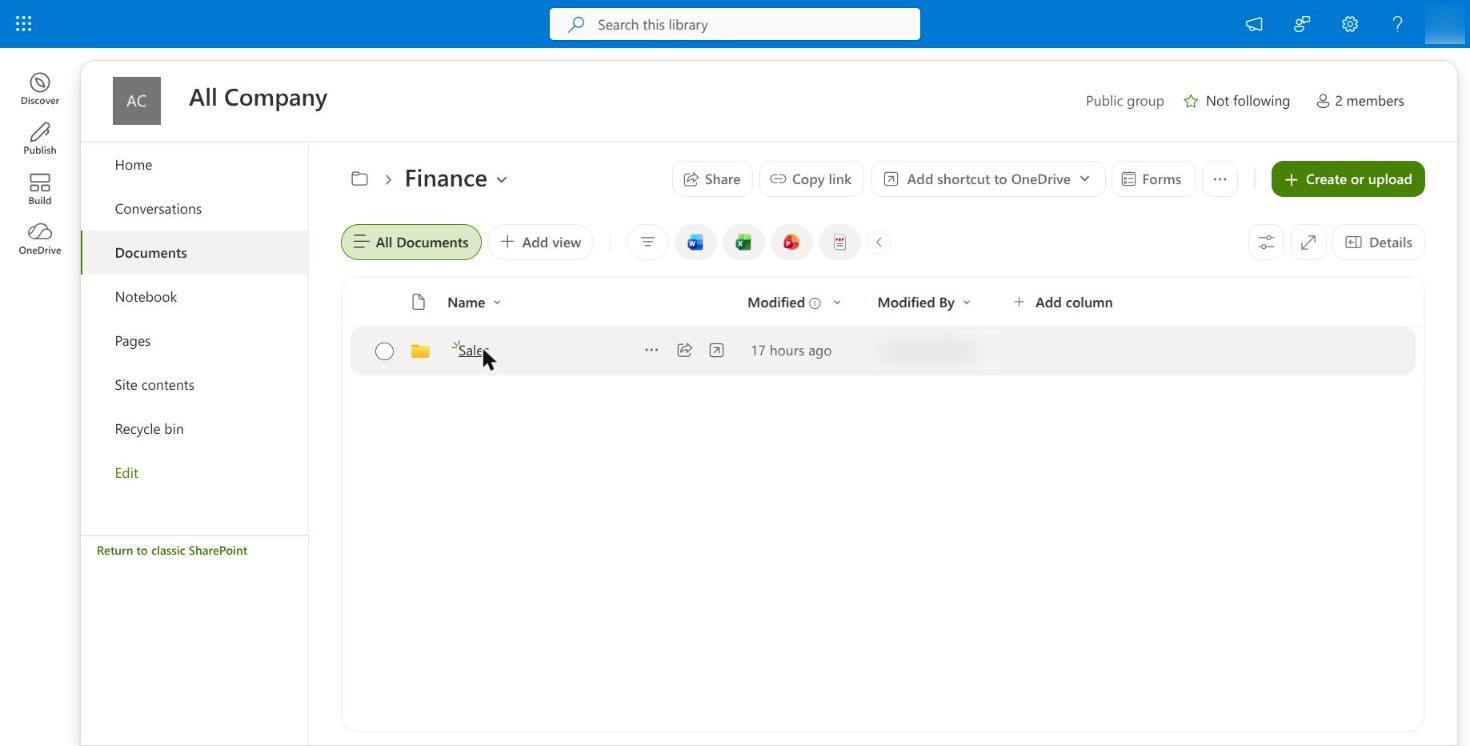
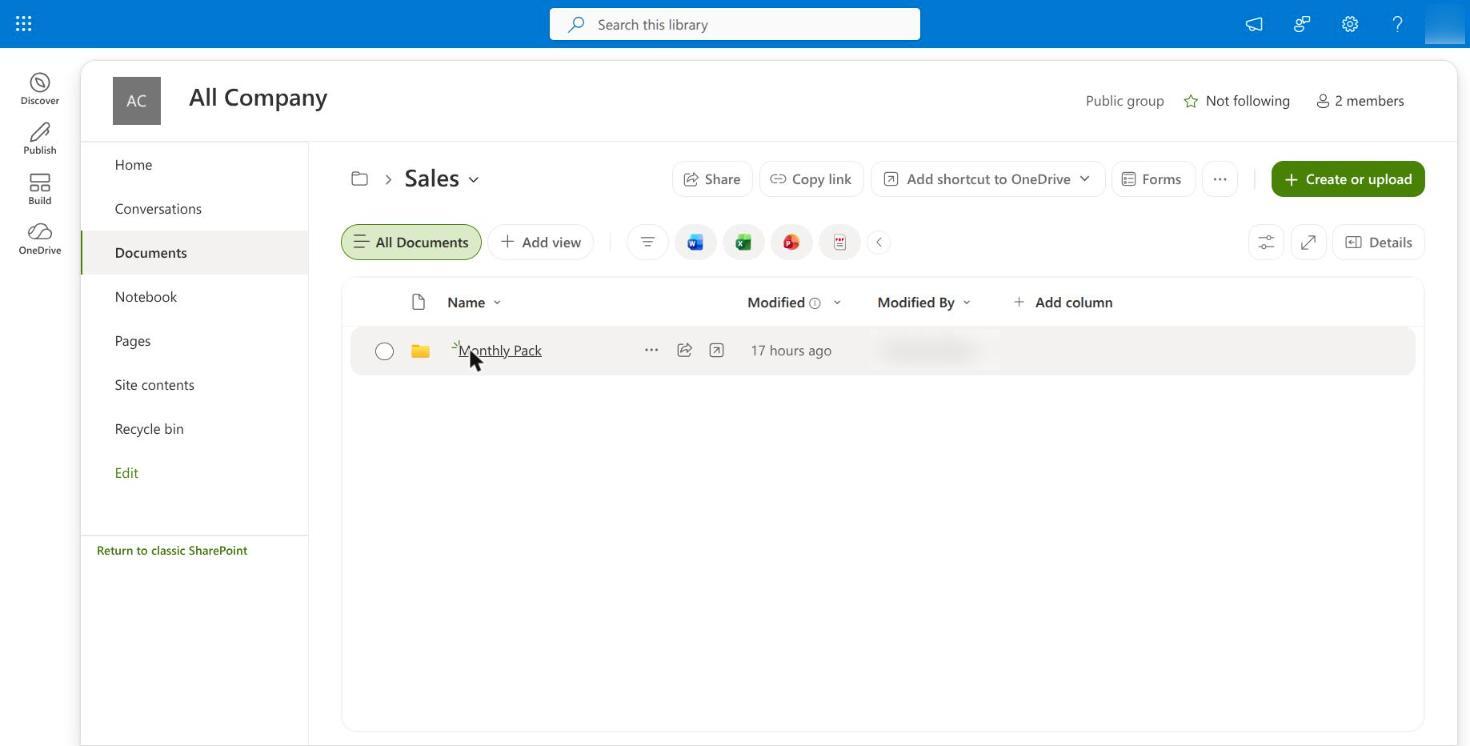
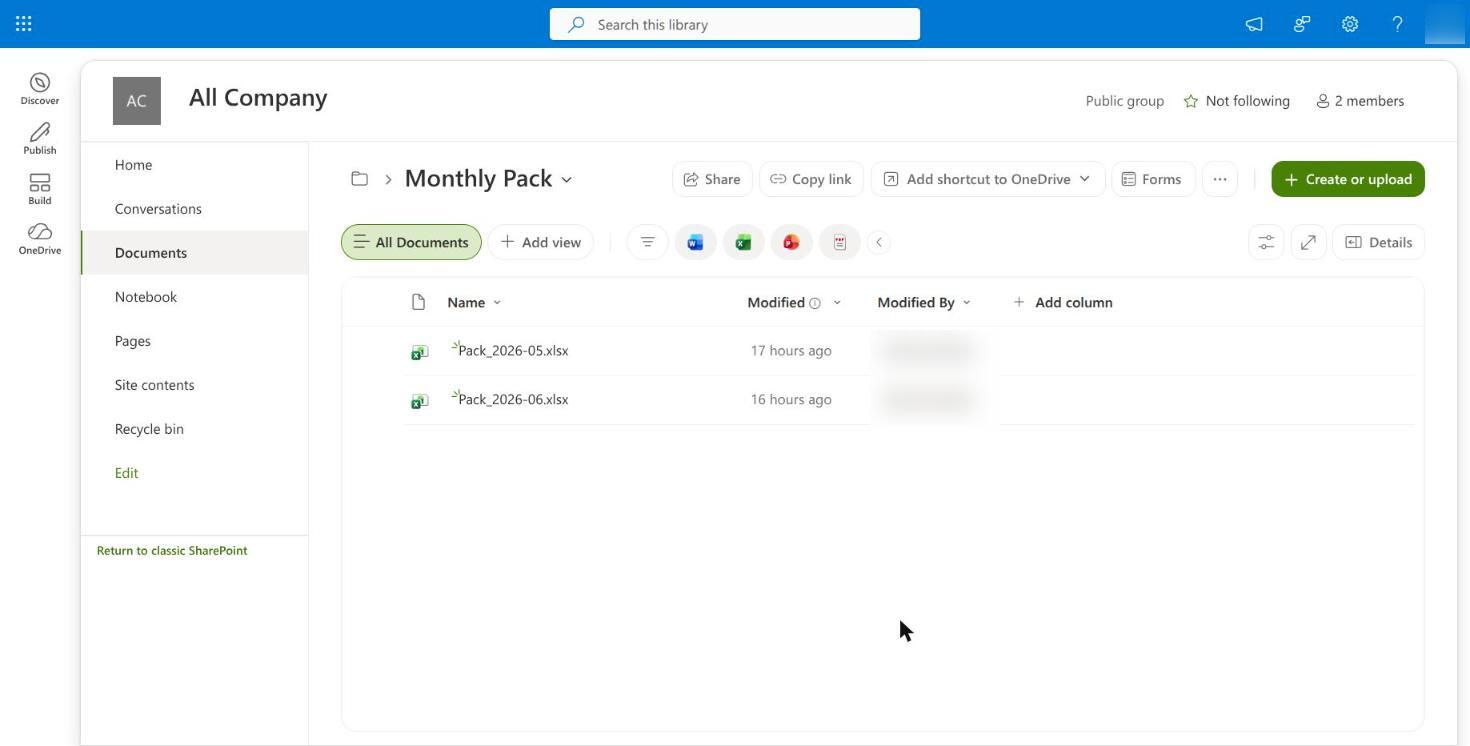
Use one shared reports site, with the hierarchy Department → Category → Report. The report folder is the leaf. Each leaf holds one series of similar Excel reports, where every new version is a new file.
Reports (SharePoint site)
├── Finance
│   ├── Sales
│   │   ├── Daily Sales          ← registered as a rolling report
│   │   │   ├── Sales_2026-08-25.xlsx
│   │   │   └── Sales_2026-08-26.xlsx
│   │   └── Monthly Pack         ← registered as a rolling report
│   │       └── Pack_2026-07.xlsx
│   └── Forecast
│       └── Budget Tracker.xlsx  ← registered as a workbook (updated in place)
└── Operations
    └── Stock
        └── Hourly Position
            └── Stock_2026-08-26_0900.xlsx
In SharePoint the same structure is three clicks deep. The department folder holds categories:
The category folder holds the report folders:
And the report folder, the leaf, holds the files themselves, one per period:
- Register the leaf folder. Copy the link to it in SharePoint and paste it into Add Excel Workbook. Only the Excel files directly inside it are considered. Files in subfolders beneath it are ignored, so do not nest report folders inside each other. Do not paste the link to a department or category folder: it holds no Excel files directly, so the report would show No reports found.
- Keep each leaf to one series. The files in a leaf are the same report at different points in time, not several different reports.
- Name folders for the people who maintain them. The folder name never reaches readers. The report name you give at registration is what they search for.
- Keep the depth consistent. Every report sits at the same depth, so anyone copying a link can tell at once whether they are on a leaf folder.
- Put workbooks updated in place beside the folders. They are registered as workbooks.
A department is a folder here, not a site. Connecting a site lets ReportMesh read everything in it, and who sees what is decided by sharing each report in ReportMesh. The producing job and each department's maintainers should hold write access to their own department folder only. If a department's files must not be readable by the application at all, they belong in a site that is not connected. See Connecting SharePoint sites.
Why structure it this way
Each leaf folder is one series and one catalogue entry. Everything ReportMesh does is per report, so the structure decides how little work each operation takes.
- Permissions. Share the report once, with a group, and every later version is covered. Nobody shares a new file each day. Revoking access is one change that takes effect on every version.
- Usage analytics. Views are recorded against the report, so a series is one line in Usage rather than a line per daily file.
- Catalogue and discovery. Readers find one card per series, marked Excel (Folder), and reach earlier files through the Version control. The catalogue stays the size of the number of series, not the number of files.
- Housekeeping and ownership. A leaf folder has one owner, one retention rule and one set of people with write access. A series that is no longer needed is retired by removing the report and archiving the folder.
- Download. Whether a workbook can be downloaded is decided per person or group with the Downloads switch, described in Sharing a report. SharePoint's own settings on the site still apply to anyone who opens the file there.
The alternatives cost more as they grow:
- Registering each day's file as its own report creates a new report to name and share every day. Yesterday's registration is left pointing at an old file, and analytics are scattered across hundreds of entries.
- Putting different reports in one folder means the newest file wins whatever it contains, and one permission set covers reports with different audiences.
- Registering a folder for a file that is updated in place adds a folder with nothing to track.
One folder, one report
- Put one report's files in one folder. Do not mix reports, regions or departments in the same folder: whichever file was created last wins, whatever it contains.
- Do not keep drafts, test runs, backups or archives in the folder. Any Excel file created there becomes the current report.
- Register the folder once. Registering the same folder a second time is refused.
Keep every file the same shape
Readers meet the report as one thing that updates. A file that differs in shape looks like a broken report.
- Use the same sheet names, in the same order.
- Keep the header row on the same row, with the same column names in the same order.
- Add columns on the right rather than inserting them, and tell readers when you do.
- Keep each file under Excel Online's 250 MB limit. A file over the limit becomes the current report and fails when opened.
Name files so people can tell them apart
ReportMesh does not read filenames to choose a file, but people do. The Version control lists files by name, newest first.
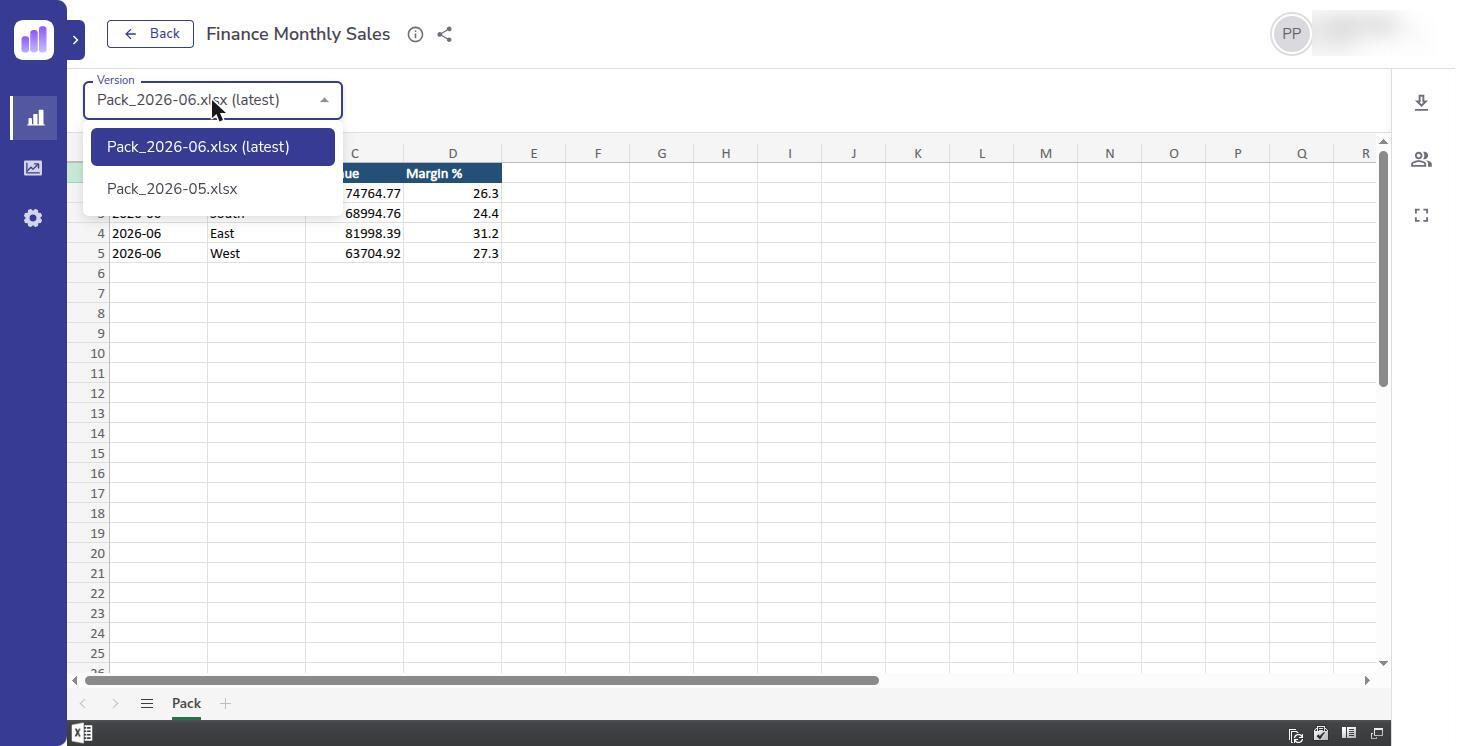
- Use a fixed pattern with a sortable date:
Sales_2026-08-26.xlsx, orStock_2026-08-26_0900.xlsxfor a report that refreshes more than once a day. - Never reuse a filename for different content in the same folder.
- Name the report for its audience, not for the file pattern.
Write each file in one piece
The newest Excel file is shown as soon as it exists, so a file that is still being written can be shown half-finished.
- Have the producing job upload or save the completed workbook in a single step.
- If the job writes in stages, give the file a non-Excel extension while it is being written and
rename it to
.xlsxat the end. Confirm this in your environment before relying on it. - Do not open a file in the folder and save it again. A resave is not a new file, so the report does not move, and an interrupted resave can leave a damaged one.
- To correct a published file, create a new corrected file. Editing the old one changes the historical version in place and does not make it current.
Cadence and version history
- The report makes no assumption about frequency. Hourly, daily and twice a year all work.
- The Version control lists the 50 newest files, newest first. Older files stay in the folder and are not reachable from the report.
- Decide how long history should stay reachable, and have the producing job remove or archive older files outside the folder. A folder that only grows slows every refresh, because the whole listing is read to find the newest file.
- Do not delete the current file by hand unless you mean to. Readers move to the next newest file, or see No reports found if none remains.
Access control
- Permissions belong to the report, not to its files. Everyone who can see the report can open every version in the folder, including the oldest. Do not put a file in the folder that some of the report's audience should not see.
- Excel has no row-level security. Anyone who can open the report sees every sheet and cell in the file. If different audiences need different rows, split them into separate folders and reports, or move the data to Power BI, where row-level security applies.
- Whoever can write to the folder in SharePoint decides what readers see in ReportMesh, so restrict write access to the producing job and the people who maintain it.
- Share the report with groups rather than individuals, so a joiner or leaver does not need a change to the report. See Managing groups.
When something looks wrong
| What readers see | Cause | What to do |
|---|---|---|
| No reports found | The folder has no Excel file. Normal before the first run. | Wait for the next run, or check the job. |
| Yesterday's file after a new one landed | The five-minute cache has not expired, or the new file has not finished uploading. | Reopen after a few minutes. |
| An old file is current | A late edit was made to an older file and the newest file is something else, or the job saved over an existing file rather than creating a new one. | Have the job create a new file each run. |
| A report that looks wrong or half-empty | A partially written, or differently structured, file is the newest. | Replace it with a correct new file. |
| The report fails to open inside the frame | The newest file exceeds 250 MB. | Reduce the file, or move the data to Power BI. |
| The last known file during an outage | SharePoint could not be reached, so the report shows the last file it resolved. | Nothing. It corrects itself on a later open. |
| A version missing from the Version control | It is older than the 50 newest. | Reach it in SharePoint, or raise the retention in the job. |
A rolling report records a view only when a file was shown. An empty folder produces no usage event.
Checklist
- One report per folder, with nothing else in it
- Identical sheet names, header row and column order in every file
- A fixed filename pattern with a sortable date
- Completed files written in one step, a new file for every run
- Retention set for old files
- Write access to the folder limited to the producing job and its maintainers
- The audience may see every version and every cell
- The report shared with groups