Row-level security
Showing different people different rows of the same Power BI report, and checking what each of them sees.
Who this is for: Publishers and Administrators. Users never see any of these controls; their rows are applied for them.
Granting access decides which reports someone opens. Where a Power BI report has row-level security (RLS), a second decision sits alongside it: which rows each person sees once they are in.
ReportMesh does not define those rules. They are built into the Power BI report by whoever created it, along with the named roles that select the rows. What you do in ReportMesh is register those roles and record which of them each person holds.
ReportMesh knows a report has RLS from Power BI itself, so there is nothing to switch on. A report with RLS carries an RLS badge on its card. Reports without it show none of what follows.
How a person's rows are decided
When someone opens an RLS report, ReportMesh sends Power BI two things: the roles they hold, and the email address on their ReportMesh account. The report's own roles decide what to do with them. You set up every RLS report the same way, whichever kind of role it uses.
Reports commonly use one of two kinds of role, and a report can mix them:
| A role per slice | A role that looks up the email | |
|---|---|---|
| What decides a person's rows | The role they hold, such as France or Canada | Their email address, looked up in the report's data |
| Roles the report declares | One per slice of data | Usually one, which every viewer holds |
| A new audience needs | A new role in Power BI, and the report republished | A new row in the report's user table; nothing in ReportMesh |
| Where a mistake shows | A role name Power BI does not recognise is rejected when the report opens | An email the report does not contain shows an empty report, with no error |
Someone holding several roles sees the rows of every one of them. Someone holding Canada and
France sees both countries.
ReportMesh sends the email exactly as it is stored on the person's account, with no change of case or spacing, because a report that looks it up compares it character for character.
Registering an RLS report
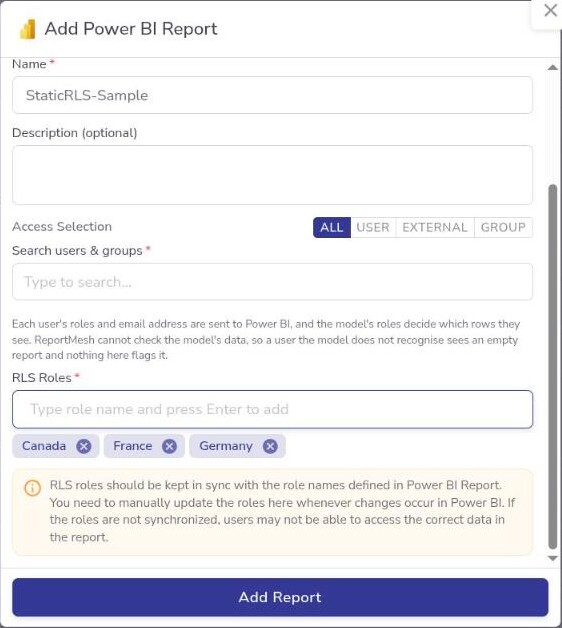
When the report you pick in Add Report → Power BI Report has RLS, the form gains an
RLS Roles field. Enter each role name exactly as defined in the report, case included. Type it
and press Enter. At least one is required.
The rest of registration is as for any Power BI report — see Adding a report.
Keeping the role names right
Role names are typed in, not read from Power BI, so nothing checks them as you enter them. A name that does not match a role in the report — a typo, or a role later renamed in Power BI — makes the report fail to open for anyone holding it.
The list in ReportMesh and the report's own roles are kept in step by hand. When the reporting team adds, renames, or removes a role, make the same change here; nothing prompts you to.
To change the roles after registration, open the report's details (the ⓘ icon next to its name), select Edit, add or remove role names, and save.
Removing a role tells you first how many internal users, external users, and groups currently hold it, because deleting it unassigns it from all of them immediately. Read that count before confirming: anyone left with no role can no longer open the report.
Assigning roles
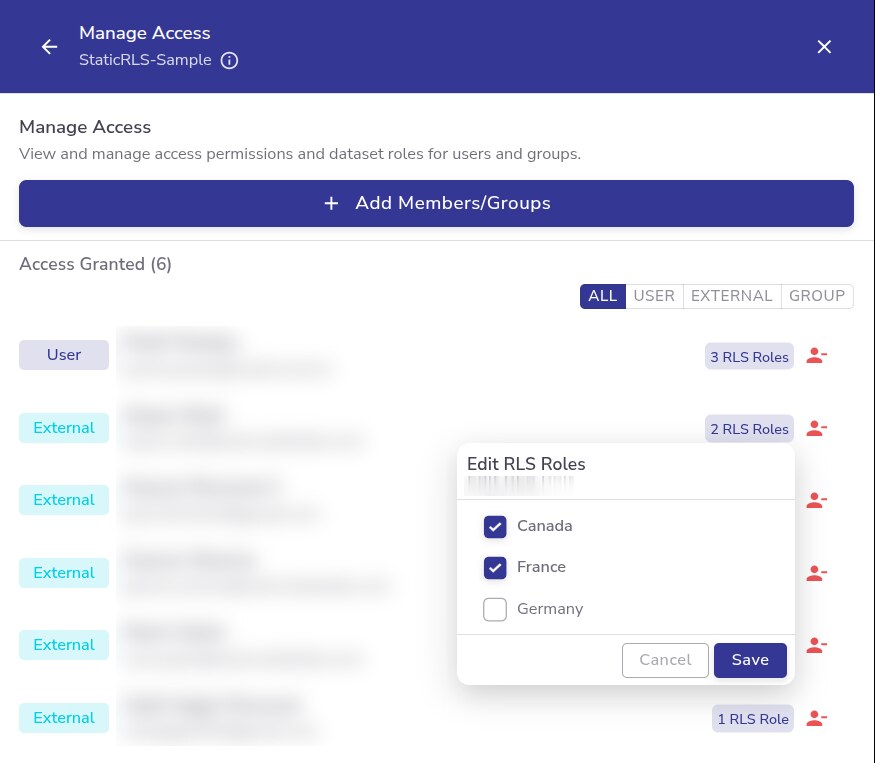
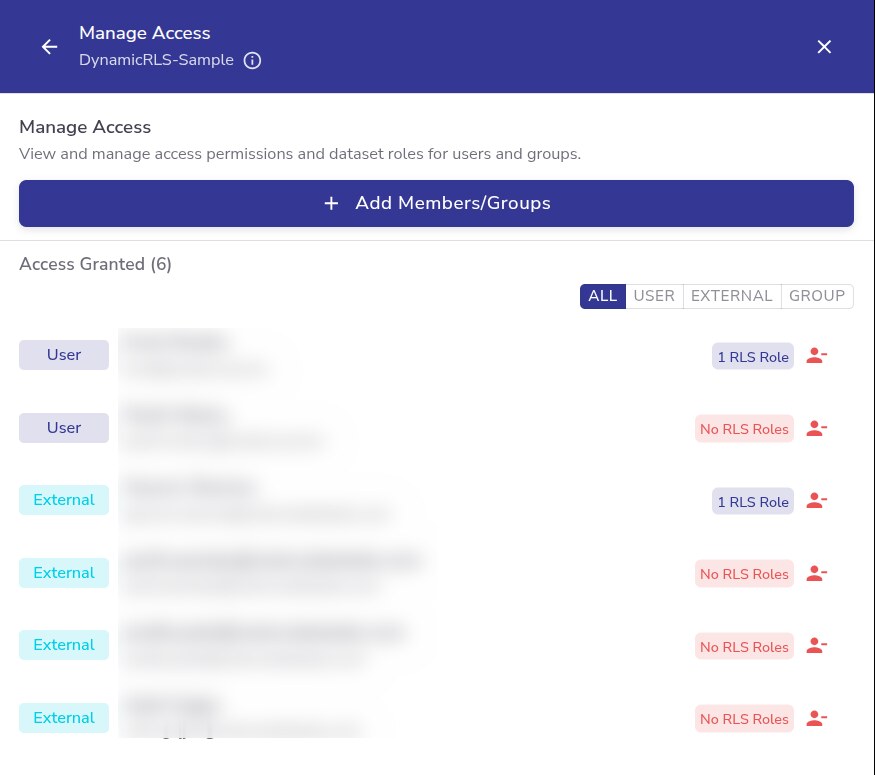
Every person and group in Manage Access carries a chip showing their assignment — either n RLS Roles, or a red No RLS Roles.
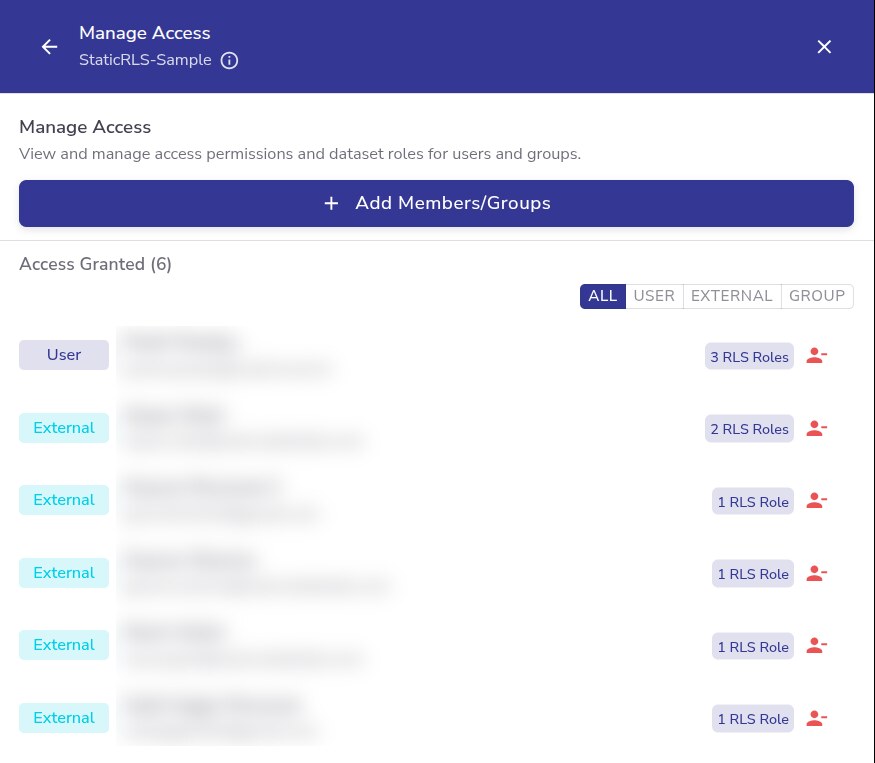
Select the chip to edit it in place, tick the roles that apply, and select Save.
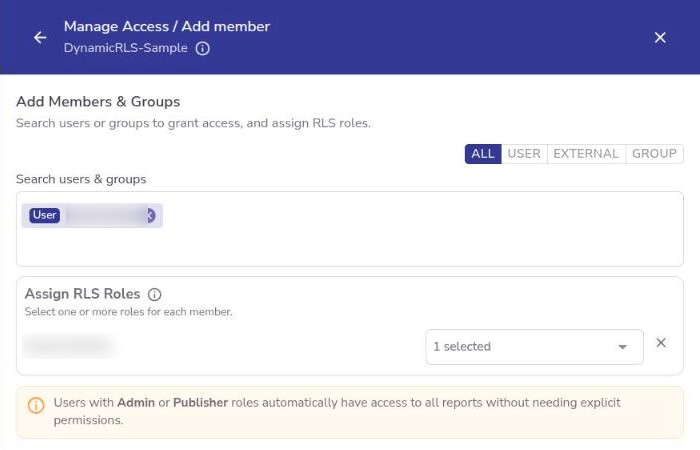
When you grant access through Add Members/Groups, an Assign RLS Roles section appears once you have picked someone, so you can grant access and roles in one step. Do that rather than adding roles later: until a person holds a role, ReportMesh refuses to open the report for them.
A group's roles apply to everyone in it, including people added to the group later. A person's rows are the combination of the roles they hold directly and through every group they belong to, and where a role looks up the email, each of them is still filtered by their own.
ReportMesh cannot check whether the report's data contains a person's email address. Where a role looks up the email, someone who holds it but whose email is missing from the report's user table sees an empty report, not an error, and nothing in ReportMesh flags it.
External guests are the usual case. A guest is filtered by the email on their ReportMesh account, which has to be in the report's user table like anyone else's. Tell the report's author before you share with someone they have not added.
Checking what people see
Opening an RLS report as a Publisher or Administrator brings up View Power BI Report, with two ways to check it.
View as role
Under View as role, pick one or more roles, or All Roles, and select View Report.
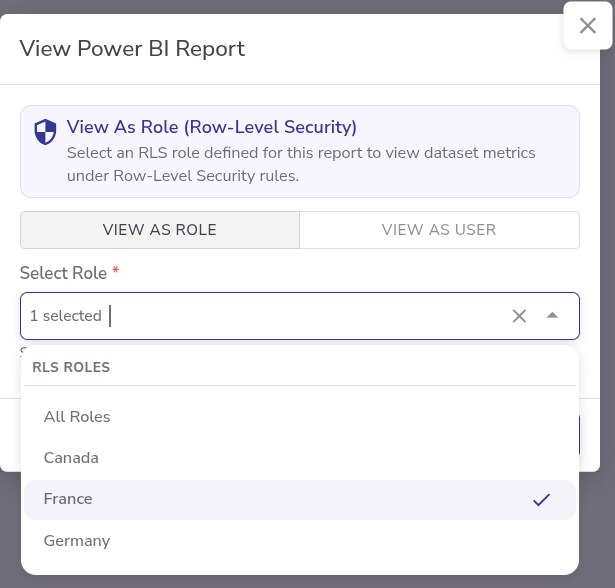
The report renders as someone holding those roles would see it. Here, viewed as France, the
Country slicer offers only France.
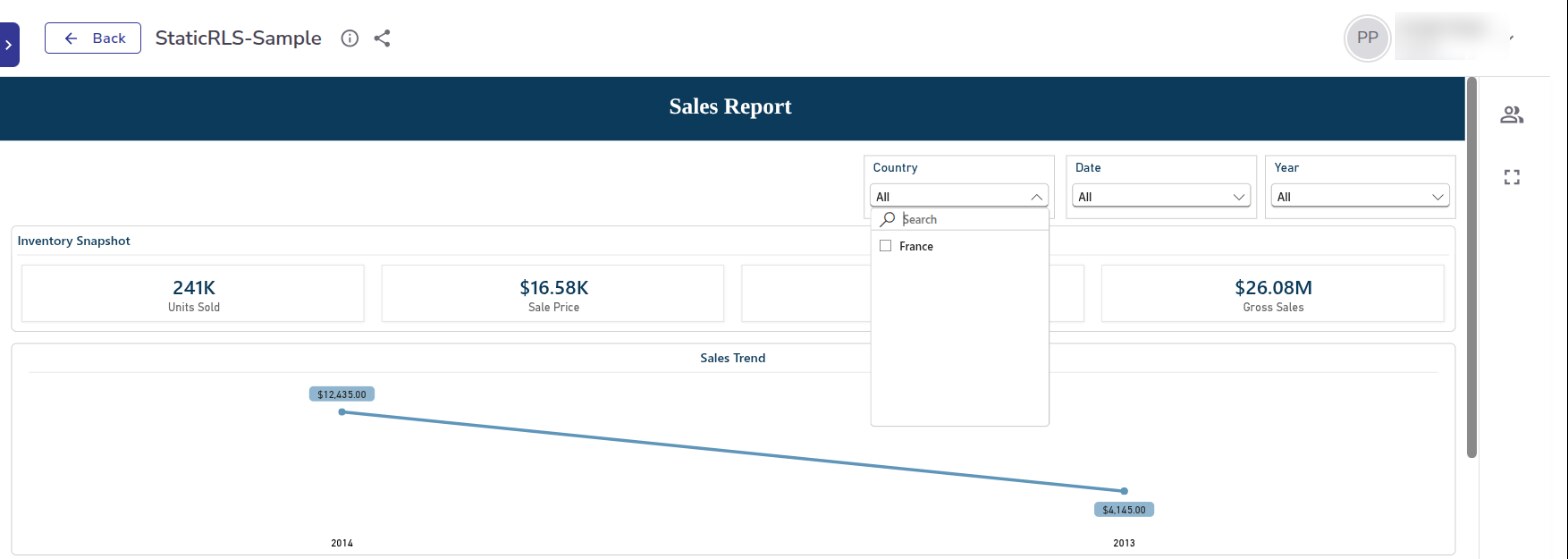
Do this for every role before sharing the report. Viewing as a role is the first moment a mistyped role name is caught, because Power BI rejects it then. It tells you little about a role that looks up the email, because that role shows each person something different.
View as user
Under View as user, pick someone who has access to the report and select View Report.
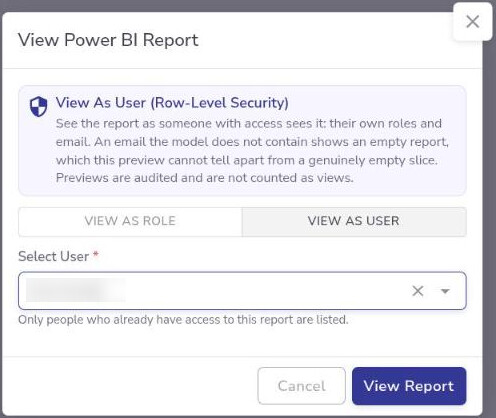
The report renders with that person's own roles and their own email. A banner names who you are previewing as for as long as it is on screen, and End preview takes you back to the choice.
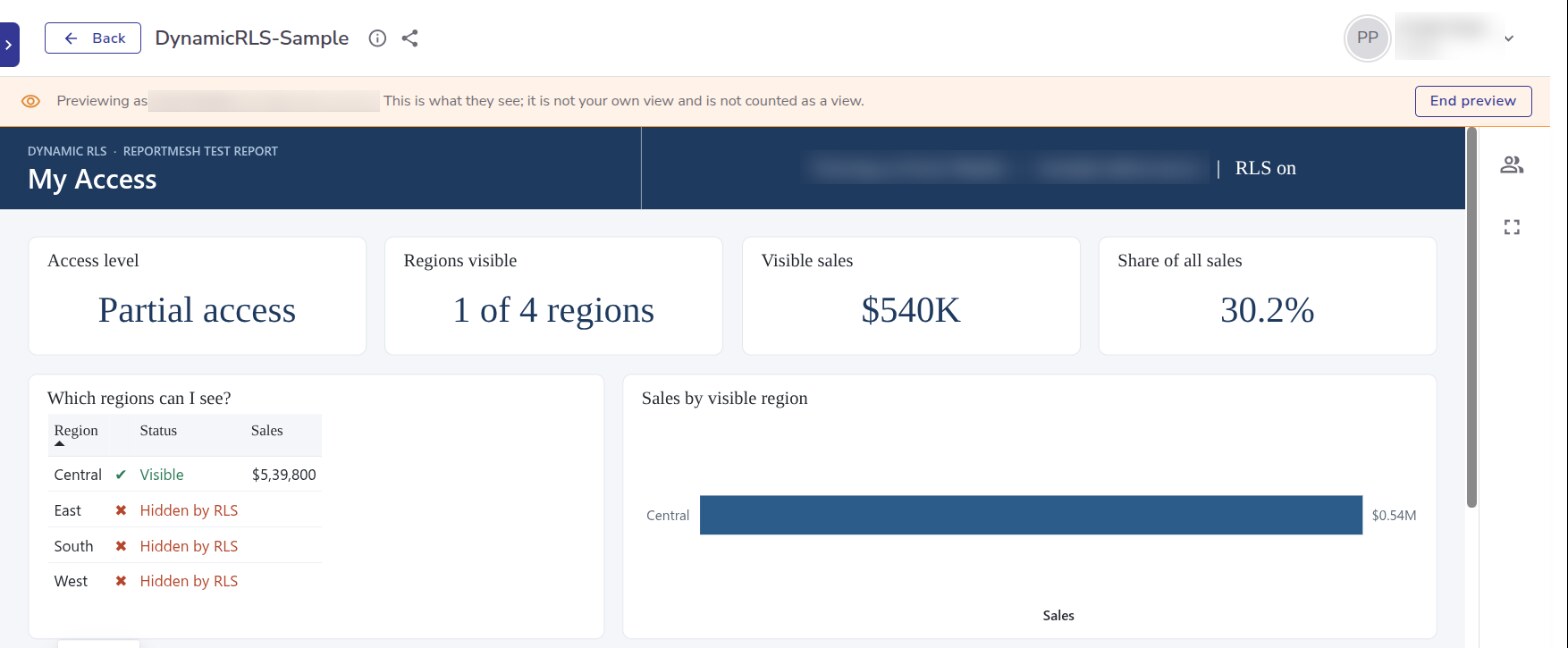
This is the quickest way to answer "what does this person see?" without working out which roles they hold through which groups. Preview each new viewer before telling them the report is ready. An empty preview means either that the person genuinely has no rows, or that their email is missing from the report's data. The preview cannot tell the two apart; the report's author can.
- Only people with access are listed. Someone not yet granted the report cannot be previewed, and you are not listed yourself.
- Someone with no role gets the same refusal they would see themselves.
- It is not a view. Nothing is added to Usage, and the person is not told. Each preview is recorded in the audit trail with who previewed whom, and when.
- It grants nothing. You see only what that person already can, and they gain nothing from it.
What viewers see
Users are not asked to choose anything. Their roles and their email are applied when they open the report, with nothing on screen to say it has been filtered.
| Message | Cause | What to do |
|---|---|---|
| No RLS role has been assigned to you | The person has access but holds no role on the report | Assign them a role |
| This report filters data per user, and your email address cannot be used to open it | The email on their account is blank, contains a space, or is over 256 characters | Correct the email on their account |
| An empty report | A role looks up their email, and it is not in the report's user table | Ask the report's author to add it |
RLS and AI chat
AI chat cannot be switched on for a report with RLS. The chat queries the data as ReportMesh rather than as the person asking, so it cannot keep its answers inside that person's rows. The report's settings say so in place of the switch, and ReportMesh refuses chat requests on such a report whatever the switch shows.
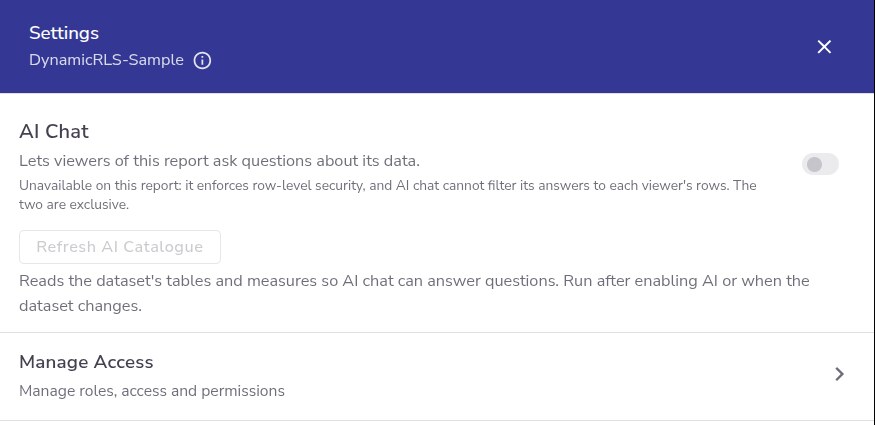
Where a report had chat switched on before RLS was added to it, the switch stays available to turn it off. Removing RLS later does not turn chat back on; that takes someone switching it on again.
When RLS is changed in Power BI
Whoever owns the report in Power BI can turn RLS on or off at any time, and they are under no obligation to tell you. ReportMesh notices the next time anyone opens the report, and refuses to open it rather than guessing which way to treat it.
This is deliberate. The alternative to showing someone their filtered slice is not showing them everything.
| What changed in Power BI | What people see | What to do |
|---|---|---|
| RLS turned on | The report will not open, saying roles need setting up | Add the role names the report now declares, and assign them. It opens once that is done |
| RLS turned off, roles still recorded here | An error offering Remove Roles | Take that option. The roles no longer filter anything and are stale configuration |
| RLS turned off, no roles recorded here | Nothing. It opens as normal | Nothing |
Remove Roles is offered only to Publishers and Administrators. A User meeting this sees the explanation without the button, so if someone reports a message like this, it is yours to clear.
Treat a report that suddenly will not open as a change upstream rather than a fault here, and check with the reporting team what they altered.
For the report's author
What the Power BI developer has to build, and hand over, is in Power BI workspace access.