Sharing a report
Granting colleagues access to a report, and taking it away again.
Who this is for: Publishers and Administrators, for any report in the catalogue.
Manage Access is also on each row of Settings → Users, External users, and Groups, for working from the person or group rather than the report.
Registering a report does not share it. Until you grant access here, a report is visible only to you and to administrators.
Grant access
-
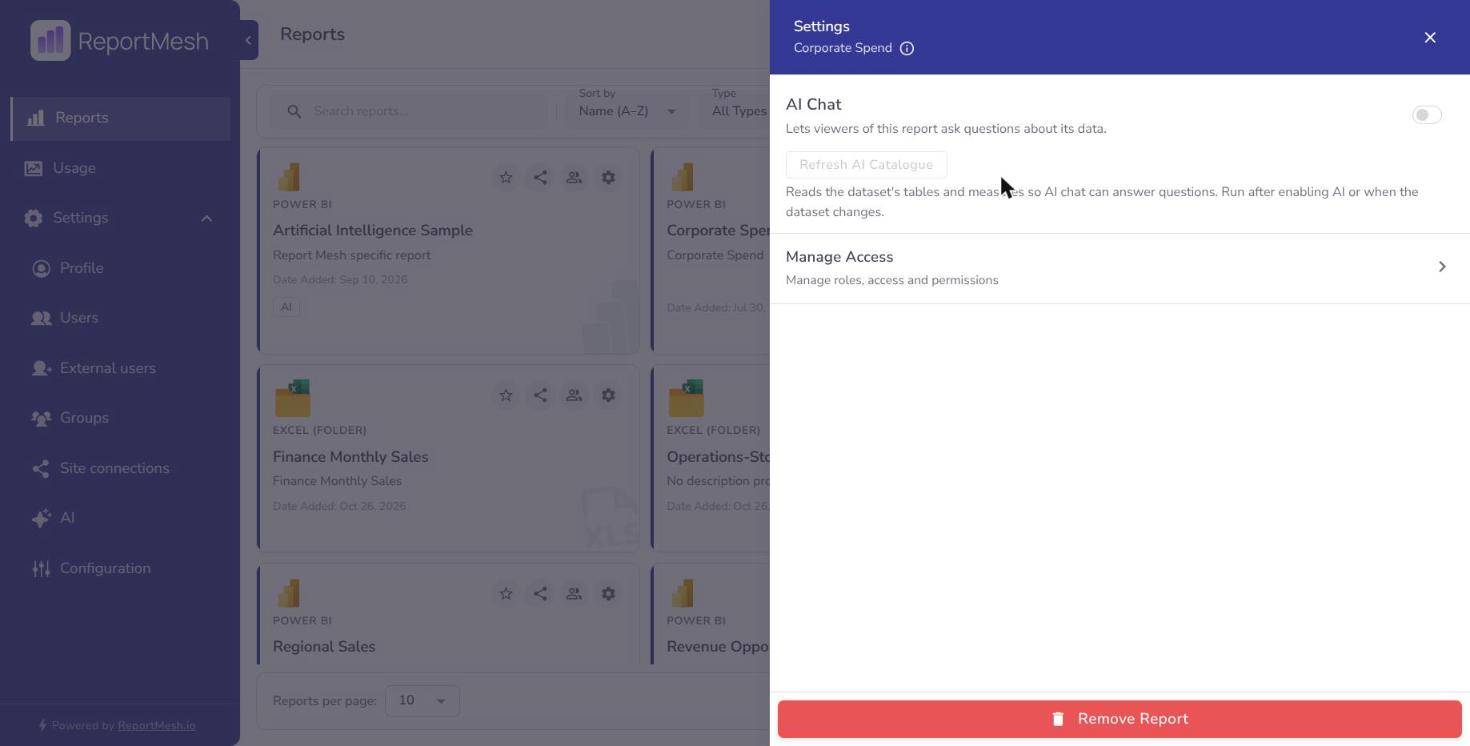
Select the report's settings (gear) icon, then Manage Access.
-
Select Add Members/Groups and choose who you are sharing with. The drawer separates three kinds of recipient:
- Users — internal colleagues. Search by name or email.
- Groups — a named set of people. Search by group name.
- External — guests from outside the organisation. Search external users.
-
Type part of a name, email, or group name. Nothing is listed until you type, and only the first 20 matches are shown, so if the person you want is not there, type more of their name.
-
Select the people or groups you want.
-
Select Grant Access, then Confirm access changes.
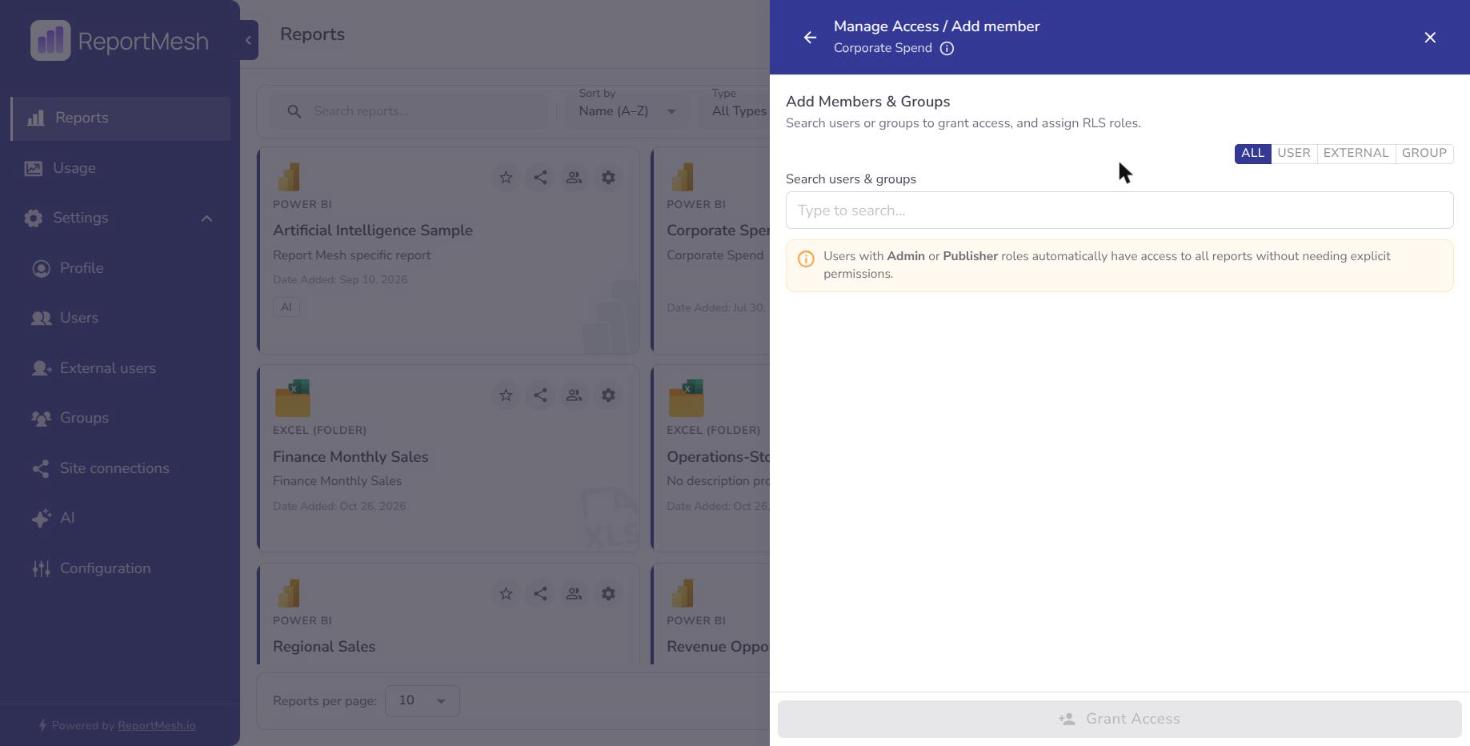
You will see Access granted successfully. The report appears in their catalogue the next time they load it.
Sharing with groups rather than people
Where more than a couple of people need the same report, grant to a group instead of naming individuals. Group membership is maintained in one place, so a new joiner added to the group picks up every report the group can see, and a leaver removed from it loses them all at once. Reports granted to twenty named individuals become twenty things to remember to revoke.
Groups carry access to content only. Being in a group never changes what someone is allowed to do in the portal — that is their role, and it is set per person.
Sharing with external guests
External guests are listed separately from colleagues, deliberately — sharing outside the organisation should be a distinct action rather than something you do by half-remembering whether a name in a list is internal.
If someone you expect is not in the external list, they have not been invited into the portal yet. An administrator has to invite them first; see Managing users.
Check who currently has access
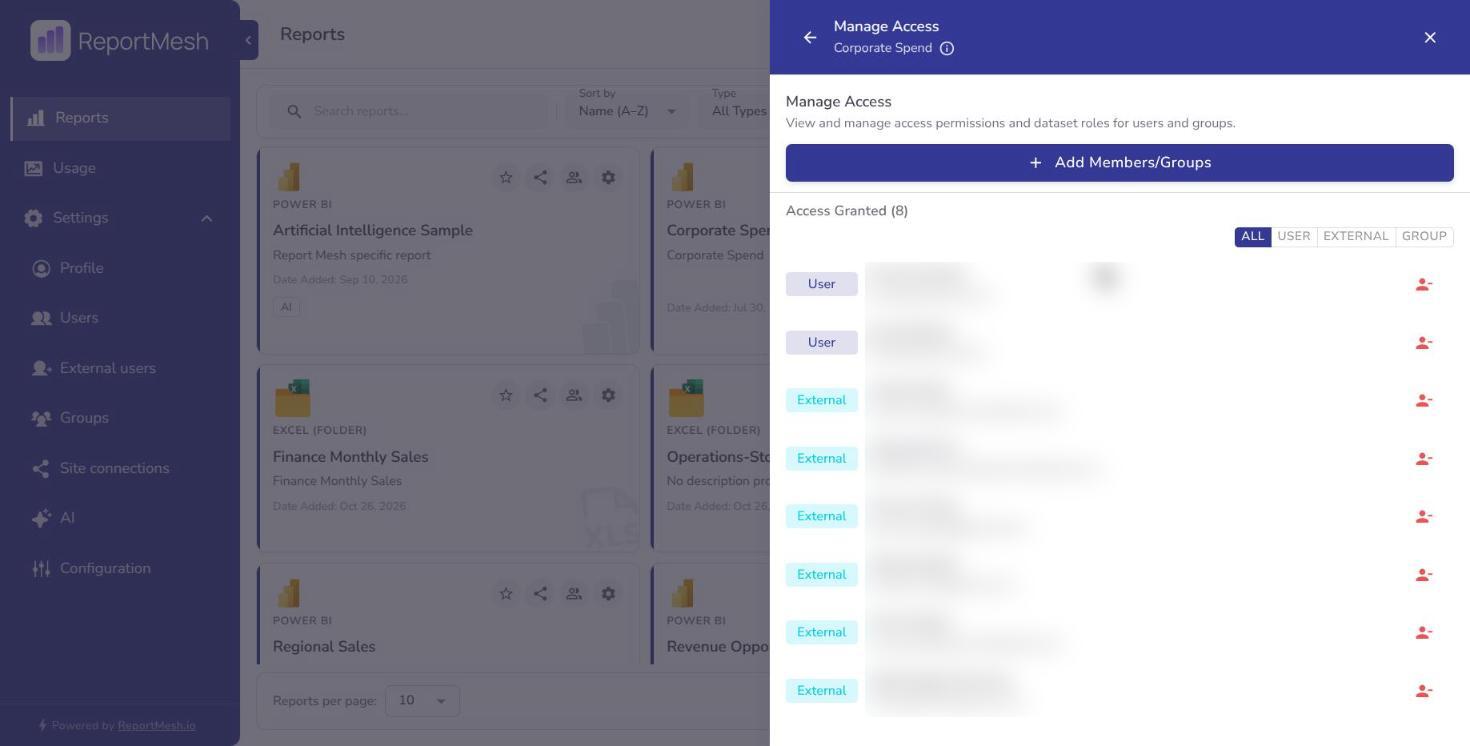
The drawer lists everyone with access to the report, marked User, External or Group, and the All / User / External / Group switch narrows the list. Where nothing has been shared yet you will see No users or groups have access yet.
The people icon on a report card, and in the viewer, opens a shorter, read-only Who has access list of names.
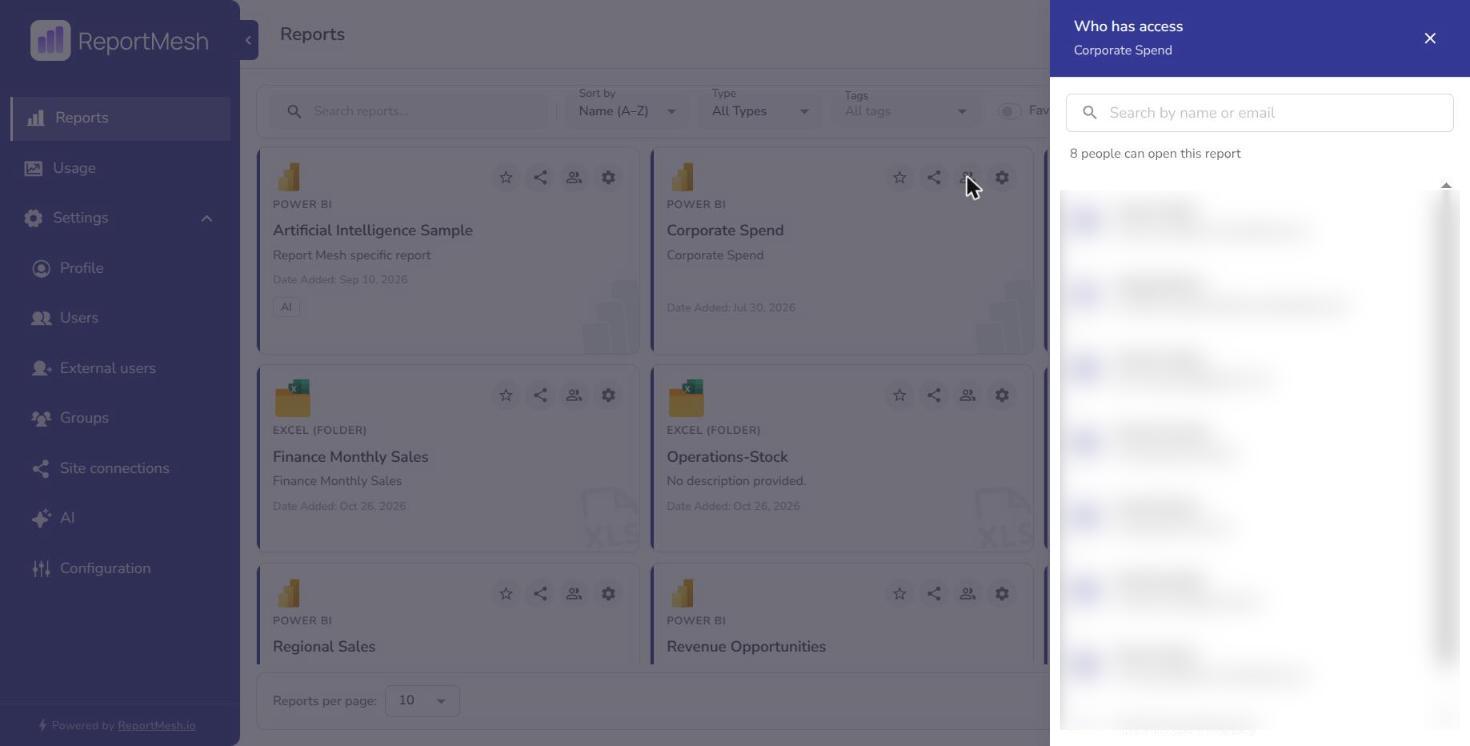
Review this before assuming a report is private. It is the only reliable answer to "who can see this?" — and worth a look before adding anything sensitive to a report that is already widely shared.
Allowing downloads (Excel only)
Viewing a report and downloading its workbook are separate permissions. Downloads are off for every Excel report until you turn them on, and are then granted per person or group. Power BI reports have no workbook and never offer them.
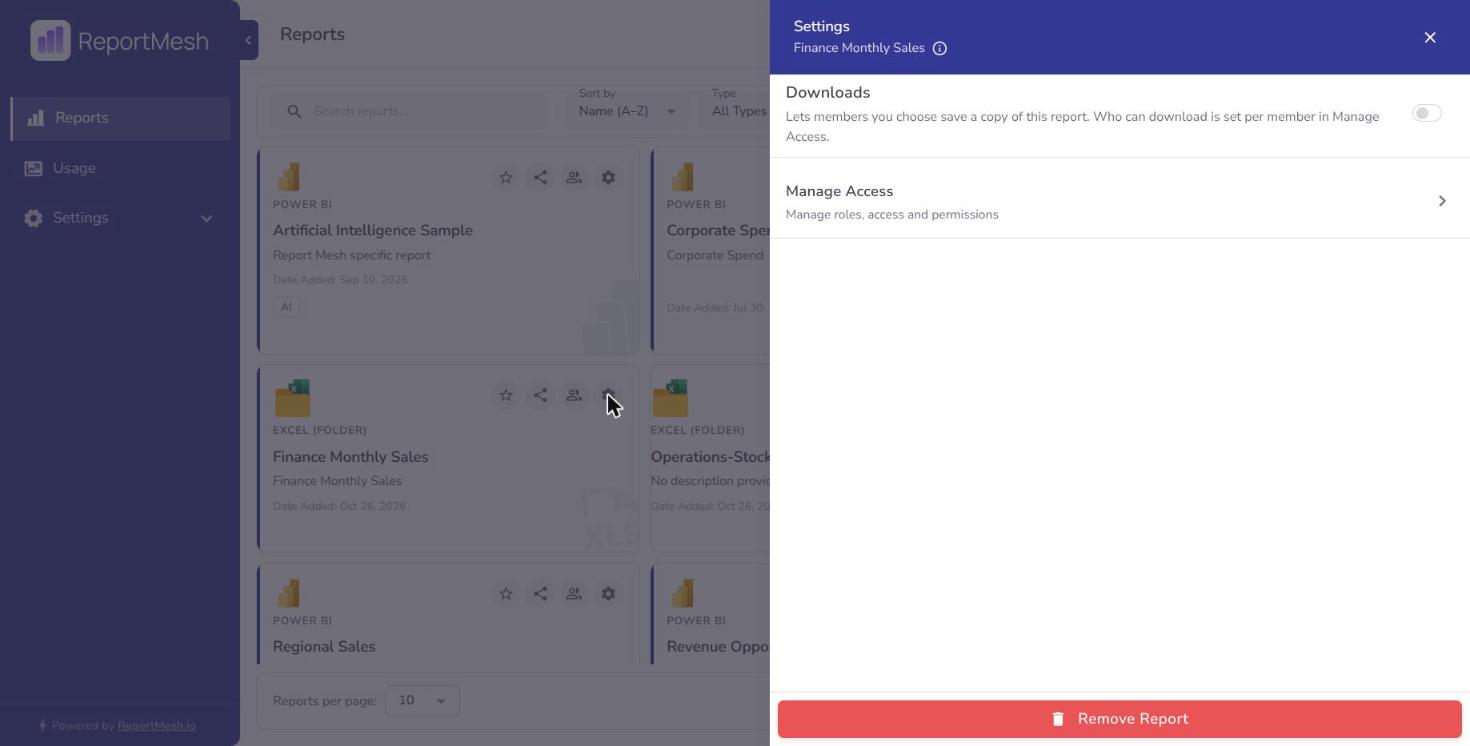
Step 1: switch downloads on for the report. Select the report's settings (gear) icon. The Downloads switch is at the top of the drawer.
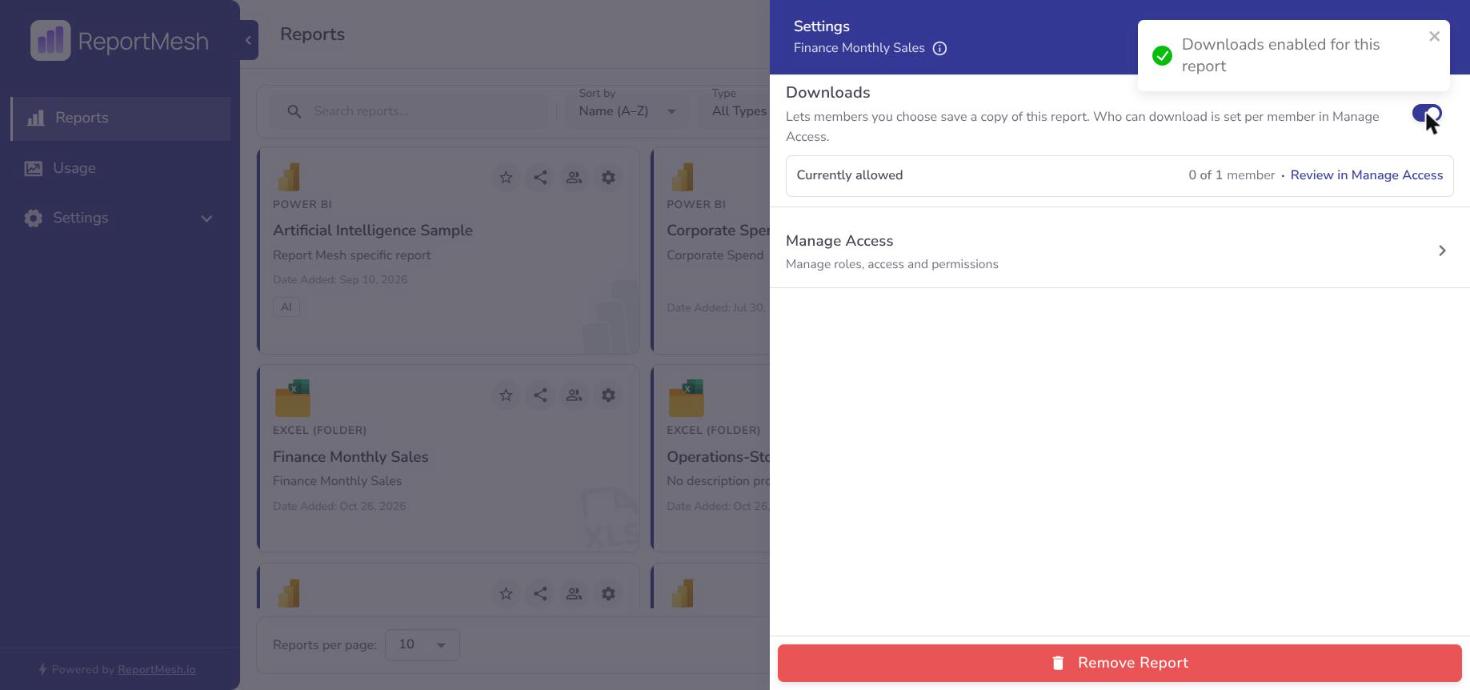
Turning it on shows Downloads enabled for this report and a Currently allowed card, which counts how many of the people and groups with access can download. Review in Manage Access takes you to the list.
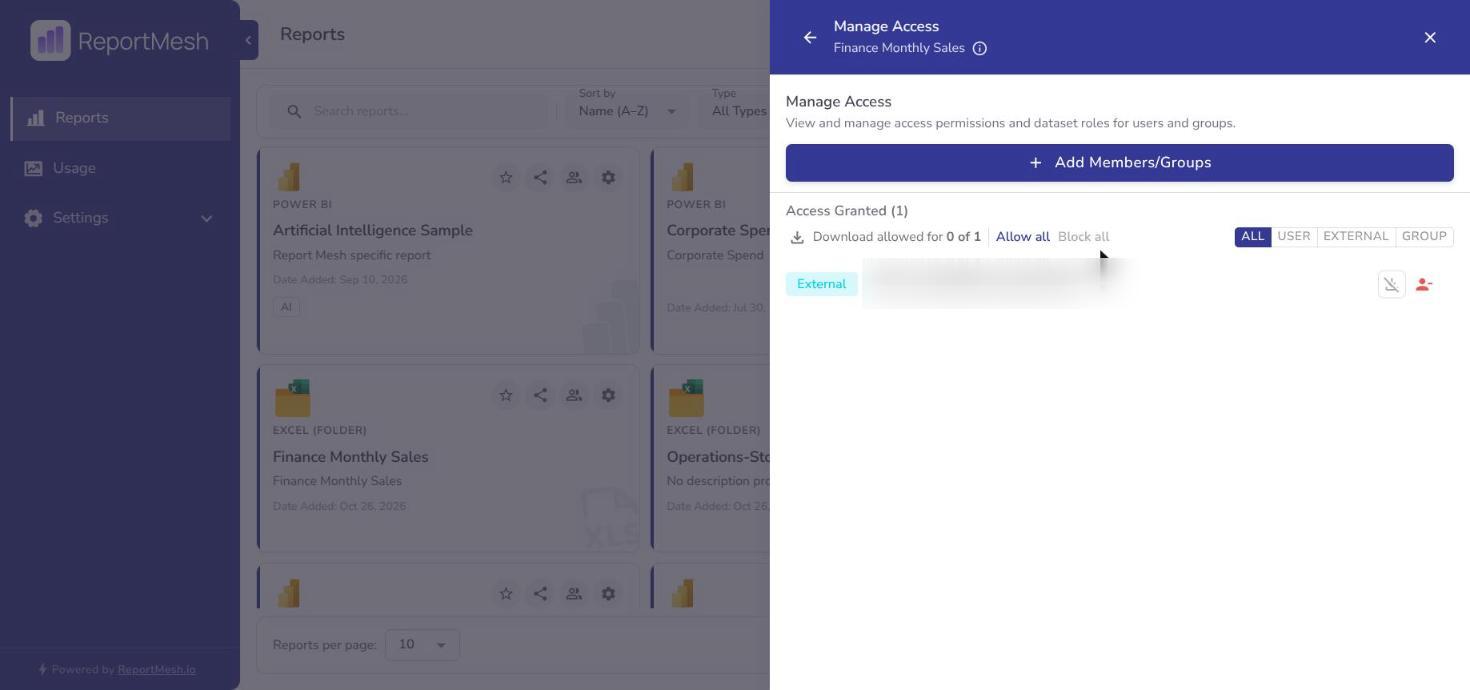
Step 2: choose who can download. Open Manage Access. With the switch on, the list gains a Download allowed for n of m summary with Allow all and Block all, and a download icon on every row. Select a row's icon to allow or block that one person or group; a struck-through icon means they can view but not download.
When you add people in Add Members/Groups, a Download checkbox appears once you have selected someone. Ticking it grants download to everyone you are adding in that step, so you do not have to come back and set it row by row.
Things to know:
- The switch is the master gate. While it is off nobody can download the report, Publishers and Administrators included, and the per-person icons are locked.
- Turning the switch off removes every download right on the report. ReportMesh tells you how many will be removed and asks you to confirm. Turning it on again does not bring them back.
- A download right lives on a view grant. It cannot exist on its own, and revoking someone's access removes their download with it.
- A group's right applies to everyone in it. A person can hold the right directly or through any group they belong to.
- Publishers and Administrators can download any report whose switch is on, without a grant.
Whatever you decide here, a downloaded copy leaves ReportMesh's control. Revoking access later does not recall files already saved, and the usage record shows only that a download happened.
Restricting rows within a report
Granting access decides which reports someone opens. Where a Power BI report has row-level security, it also has to be told which rows each person sees, by assigning them one of the report's roles. Assign the roles when you grant access: until a person holds one, the report will not open for them.
How that works, and how to check what each person sees, is in Row-level security.
Revoke access
- Open Manage Access on the report.
- Find the person or group.
- Select Revoke, then confirm.
You will see Access revoked successfully, and the report disappears from their catalogue.
Revoking does not undo what has already happened. Anyone who has viewed the report may have taken their own copy of the numbers, and the usage record of their past views remains.
If someone still sees a report after you revoke it, they probably have access a second way — through a group as well as by name. Revoke the group grant too, or take them out of the group.
Revoking a person's access to an Excel report does not change anything in SharePoint. ReportMesh's own access is granted per site by an administrator and is entirely separate from who a report is shared with — revoking someone here, or removing the report altogether, leaves it as it was.
Enabling AI chat on a report
The same drawer carries an Enable AI chat toggle for the report, and a Refresh AI Catalogue action. Turning it on gives the report's viewers the question panel described in Asking questions with AI.
This is a per-report decision and it composes with a per-person one. A viewer gets the AI panel only when the report has AI enabled and an administrator has enabled AI for them individually and they can already view the report. If someone reports the panel missing, check all three before concluding something is broken.
Think before switching it on. AI chat answers questions over the report's underlying data, and it is worth being confident the report is one you are content to have queried freely.