Seeing how reports are used
Reading the Usage screen: which reports are being opened, by whom, and which have gone quiet.
Who this is for: Publishers and Administrators. Publishers see the reports they registered; Administrators see everything.
Go to Usage in the side panel.
Summary figures
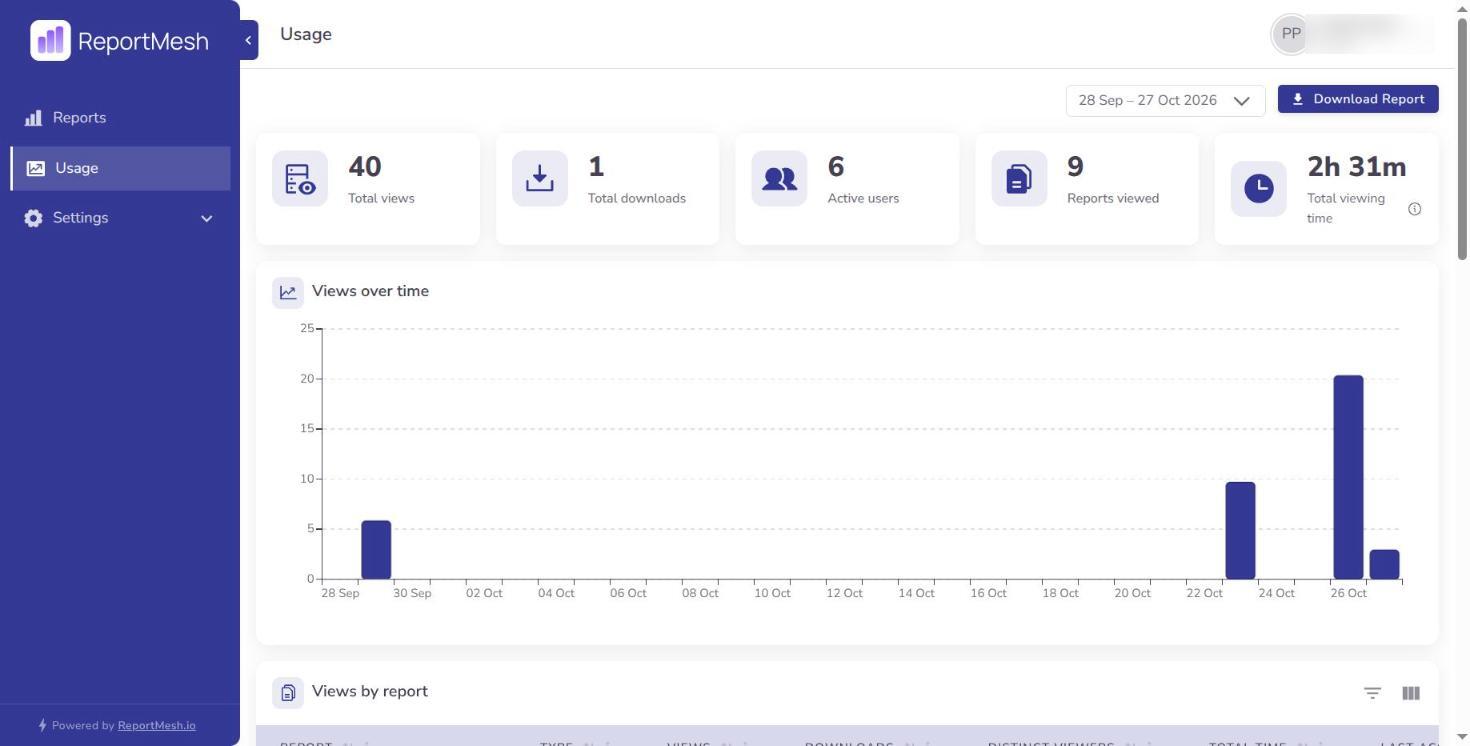
Five numbers head the page, all for the date range you have selected:
| Figure | What it counts |
|---|---|
| Total views | Times a report was opened. One person opening the same report five times is five views. |
| Total downloads | Times an Excel workbook was downloaded. Counted only when the file was actually delivered, so a refused or failed download is not included. See Allowing downloads. |
| Active users | Distinct people who opened at least one report. |
| Reports viewed | Distinct reports opened at least once. |
| Total viewing time | Time spent with reports open, added up. |
Choosing the period
Usage date range sets the window. Every figure and table on the page follows it, so compare like with like — a fall in views usually means a shorter range, not falling interest.
Usage by report
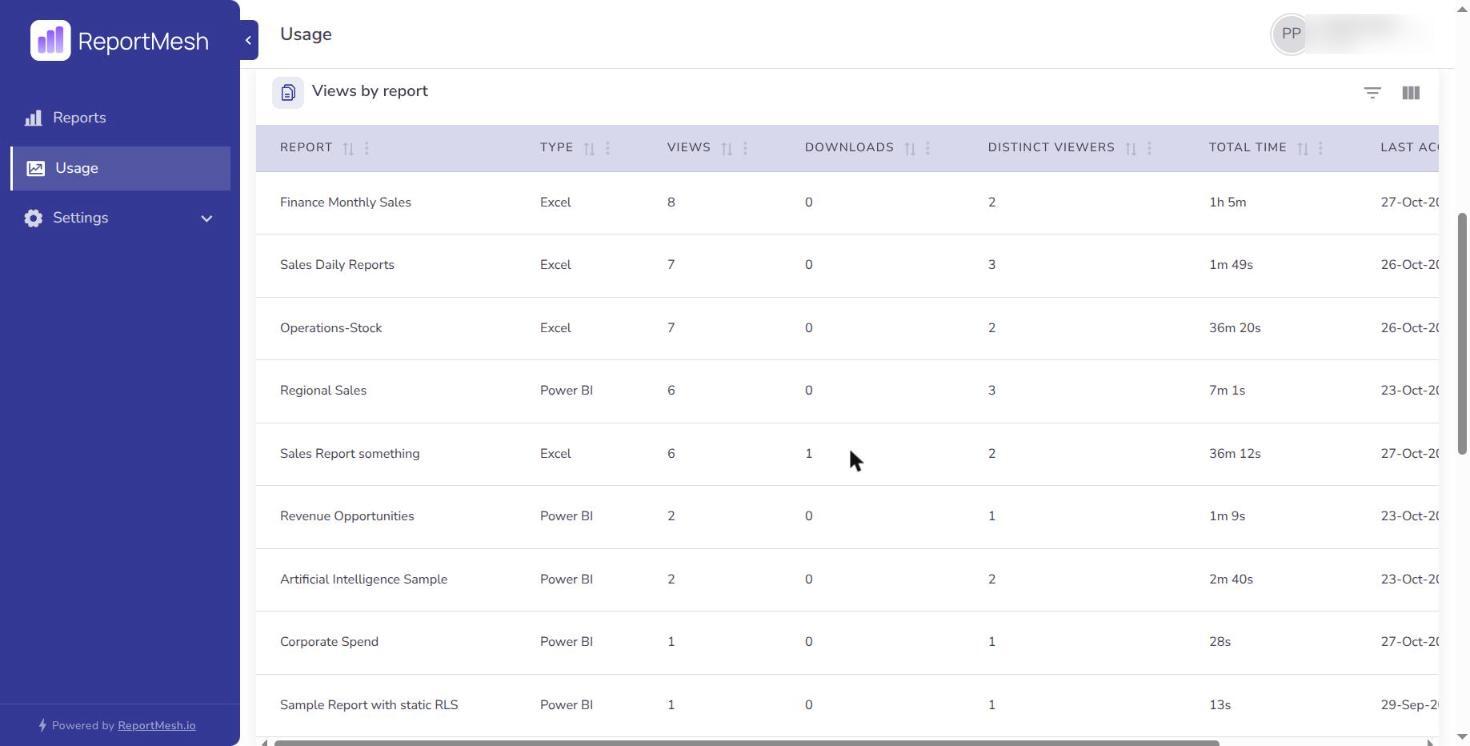
Which reports are earning their keep:
- Report and Type — name and whether it is Power BI or Excel.
- Views — times opened.
- Downloads — times the workbook was downloaded. Always zero for a Power BI report.
- Distinct viewers — how many different people. This is the more useful number of the two: forty views from two people is a very different report from forty views by forty people.
- Total time — time spent with it open.
- Last accessed — when someone last opened it.
Select a report's row to see who viewed it — each person with their own view count, total time and when they last opened it. This is the quickest answer to "is anyone actually using this?" when the headline number alone does not settle it.
Usage by user
The same activity from the other direction — Views, Downloads, Distinct reports, Total time, and Last accessed per person.
Select a person's row to see which reports they opened, with the same figures per report.
Use it to find people who have been granted a great deal and use none of it, which usually means access that could be tidied up.
Removing a report or a person does not remove their past activity from this screen. Their rows stay, under the name they had when the views happened; a report with no recorded name shows as Removed report.
Both drill-downs follow the date range at the top of the page, so a figure that looks wrong is usually the range rather than the data. The totals inside a drill-down add up to the row you opened it from.
This screen names individuals and shows how much they used each report. In many organisations that makes it personal data, subject to your own policies on monitoring staff.
Use it to manage the report catalogue, not to appraise people. Time-with-report-open is a poor measure of work in any case — it counts a tab left open over lunch the same as concentrated analysis.
Stale reports
The last table finds reports nobody is opening, using Views in range, Last accessed, and Days since last access. The Staleness threshold control sets how many days of silence counts as stale.
A stale report is a prompt to check, not an instruction to delete. Plenty of legitimate reports are quarterly, or belong to one person who is on leave. What stale genuinely tells you is that nobody would notice immediately if the report broke — so if it matters, it is worth confirming it still works.
Before removing anything, look at who has access, and ask them. See Sharing reports.
What is and is not recorded
Recorded: that a person opened a report, when, and roughly how long it stayed open.
Not recorded: what they filtered, which pages they looked at, or what any of the figures were. The usage data tells you a report was opened, never what was read in it.
Views are recorded when someone opens a report in ReportMesh. If people also open the same Power BI report directly in Power BI, or the workbook straight from SharePoint, those views happen outside ReportMesh and do not appear here — so a report can look quieter than it really is.