Viewing a report
Opening a Power BI report or an Excel workbook, and using the controls in the viewer.
Who this is for: everyone.
Open a report
- Go to Reports in the side panel.
- Find the report you want — see Finding a report if the catalogue is long.
- Select the report card.
The report opens inside ReportMesh. You are not redirected to Power BI or SharePoint, and you do not need a separate licence or sign-in for either.
Controls in the viewer
Along the report you have:
| Control | What it does |
|---|---|
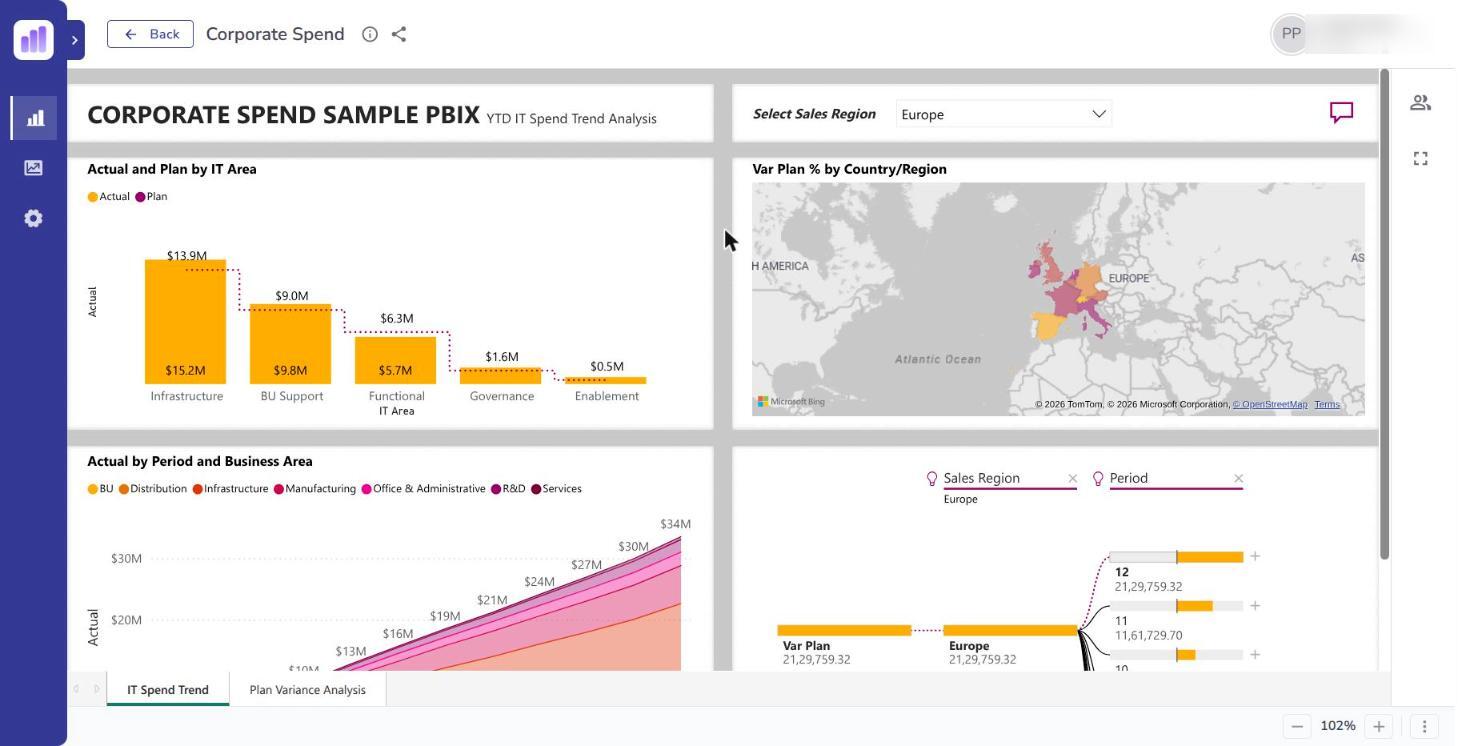
| Zoom in / Zoom out | Adjust the report's size on screen. |
| Display Options | Change how the report is fitted to the page. |
| Full screen | Expand the report to fill the screen. |
| Ask AI about this report | Open the question panel, where enabled. See Asking questions with AI. |
Press Esc to leave full screen.
Power BI reports
Power BI reports are interactive. Slicers, filters, cross-highlighting, and drill-through work as they do in Power BI itself — selecting a bar in one chart filters the others on the page, and multi-page reports have their page tabs along the bottom.
Changes you make while viewing — filters you set, selections you make — are yours for that session and are not saved back to the report for anyone else.
Excel workbooks
Excel workbooks open as the stored workbook, with its sheet tabs. They are for reading. Any editing happens in SharePoint or Excel itself, through your normal process, not here.
Reports that roll forward
Some Excel reports are registered against a SharePoint folder rather than a single file. These always open the most recently created workbook in that folder, so a report that is reissued each month stays current without anyone re-registering it.
Where a report works this way, the viewer carries a Version control listing the workbooks in the folder, newest first, with the current one marked (latest). Choose an earlier one to read it instead. Reports registered against a single workbook have no such control, because there is only ever the one file.
Whoever maintains the folder can find how it is set up in Rolling Excel reports.
Which of the two a report is was settled when it was registered, and it is not something you can change from the viewer. If the folder is empty the report has nothing to show and says so.
Downloading a workbook
Where you hold the download right, an Excel report shows a Download workbook icon in the toolbar beside the report. Select it to save the workbook to your computer under its SharePoint file name.
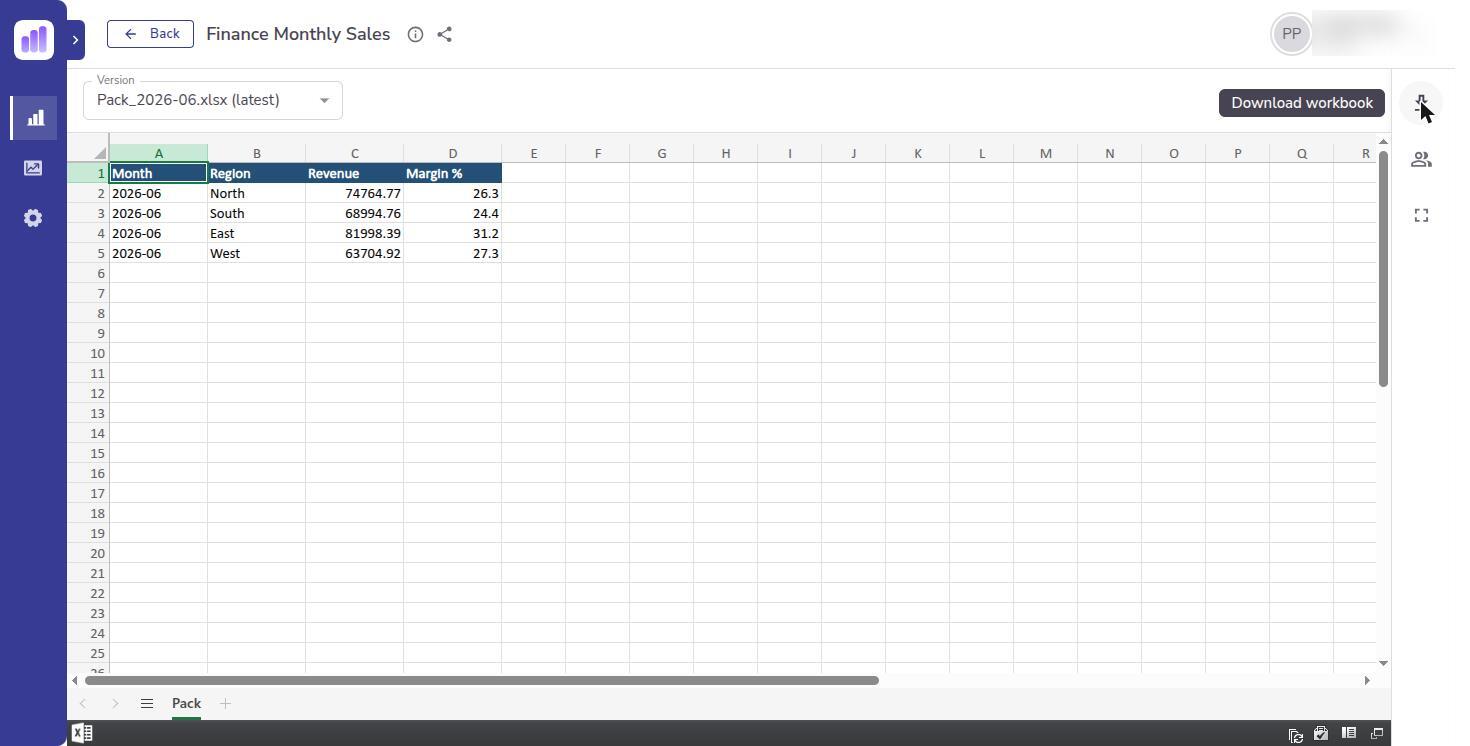
If the icon is not there, you do not hold the right. Ask a Publisher or Administrator; see Allowing downloads.
- On a report that rolls forward, the icon saves the file currently shown, so choosing an earlier file in the Version control downloads that one.
- Power BI reports have no workbook behind them and never offer a download.
- Being allowed to open a report is a separate decision from being allowed to take the file away.
- A download is recorded in usage only once the file has been delivered.
- If a rolling report's folder is empty there is nothing to download, and ReportMesh says so rather than saving an empty file.
A downloaded copy is outside ReportMesh. It does not follow later revocations, and it is not recorded again when it is opened.
What other people can see
Opening a report is recorded. Your organisation can see that you viewed a report, when, and for how long — this is what feeds the Usage screen. It records the fact of the view, not what you filtered or looked at.
ReportMesh controls which reports you can open. It does not, by itself, restrict which rows within a report you can see.
Where a report needs different people to see different slices of the same data — each region seeing only its own figures, say — that has to be built into the report itself by whoever created it. If you are unsure whether a report you have been given restricts rows in this way, ask the person who owns it rather than assuming it does.
Where a report does have Row-Level Security built into it, the rows you get are decided by the roles assigned to you when the report was shared and, where the report looks it up, your own email address. This is applied silently: the report simply opens showing your slice, with nothing on screen to say it has been filtered or how. If the figures look smaller than you expect, or the report opens empty, that is worth asking about rather than treating as the whole picture. Publishers and Administrators can preview the report exactly as you see it — see Row-level security.
If a report will not open
- The report is missing from the catalogue. It has not been shared with you.
- The report opens but shows an error. The underlying Power BI report or workbook may have been moved, renamed, or deleted at the source. Tell whoever owns the report.
- The report is slow the first time. Large Power BI reports take a moment to load initially.
- "No RLS role has been assigned to you." The report restricts rows and you have not yet been given a role on it. Ask whoever shared it.
- "This report filters data by your email address, and yours cannot be used to open it." The email address on your account is blank or malformed. Ask an administrator to correct it.