Your profile
Who this is for: everyone.
Go to Settings → Profile. It shows your Display name and Email.
Your display name is what colleagues see when they are sharing a report with you, so it is worth having it read the way people would search for you.
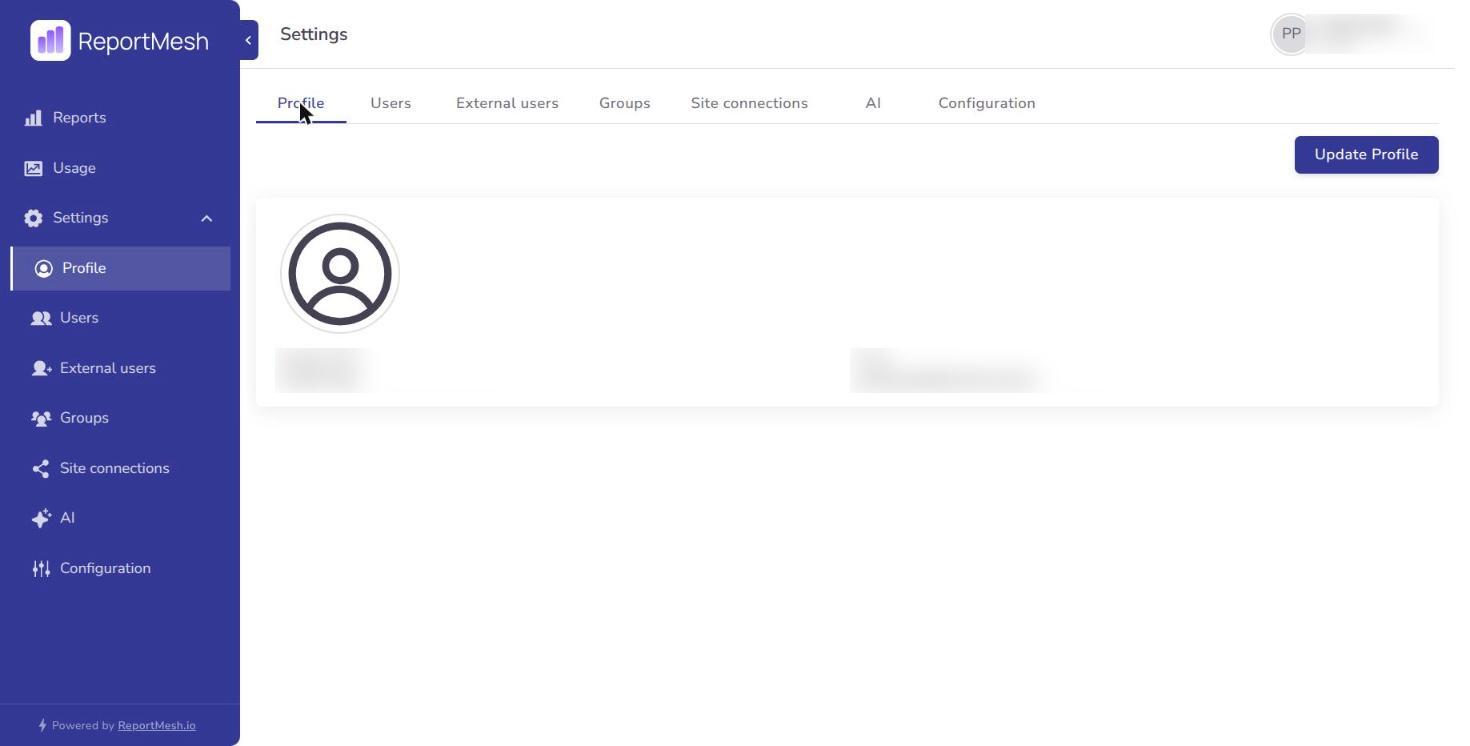
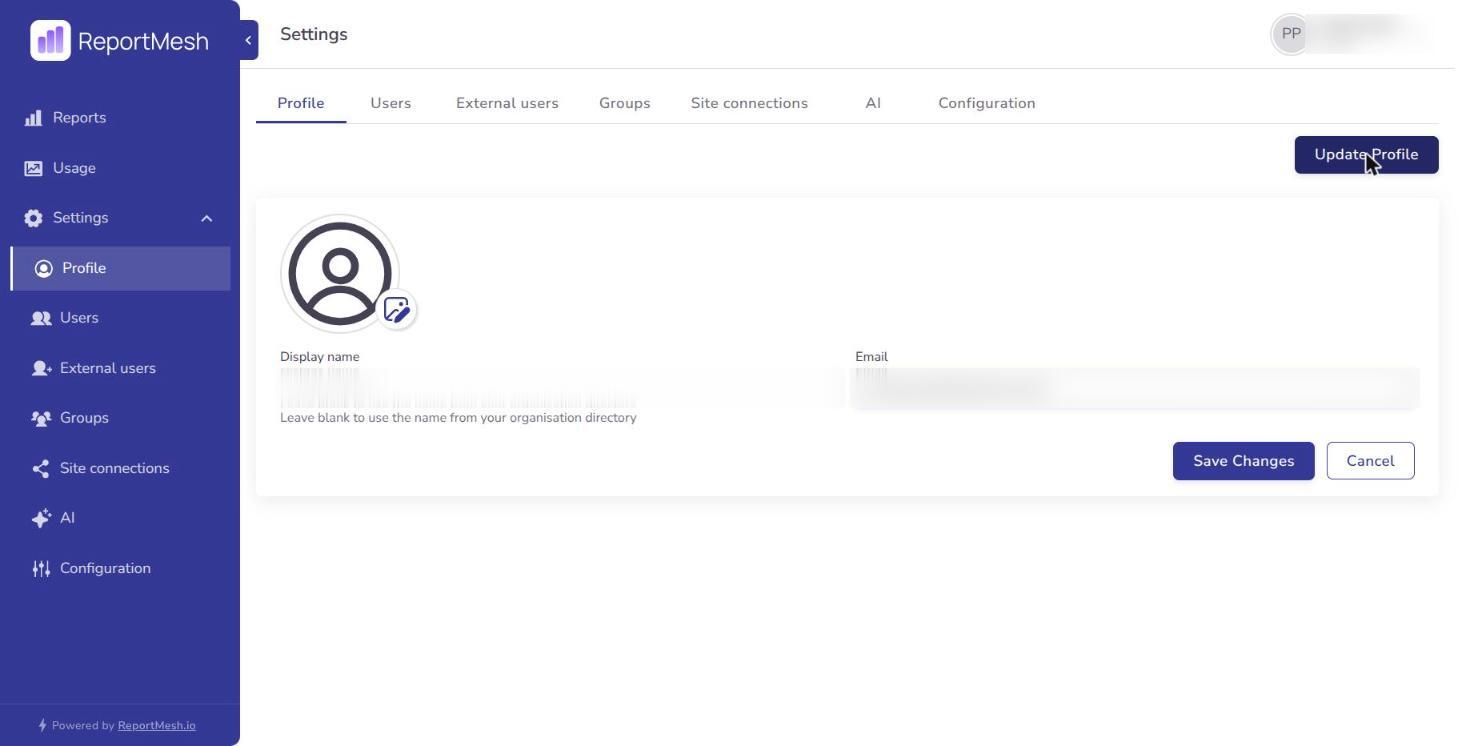
Update Profile puts the page into edit mode.
Your picture
Your picture appears next to your name wherever the portal shows people — the access list on a report, the grantee search, and usage.
To change it, put the profile into edit mode and select the picture, then choose a PNG or JPEG.
You do not have to set one. If you sign in with your Microsoft account and have a photo there, that is used automatically. Failing both, you get your initials, which is a perfectly ordinary state and not a sign anything is unfinished.
What you cannot change here
Your email address identifies your account and is not editable.
If you sign in with your Microsoft account, your details come from your organisation's directory. A name change is made there by your IT team and flows through to ReportMesh, not the other way round.
Your role — User, Publisher, or Administrator — is not shown as something you can change. Roles are assigned by an administrator. If you need to do something the portal will not let you do, that is a conversation with your administrator rather than a setting here.
Passwords
There is no password to change here.
- Signing in with your Microsoft account? Your password is your normal work password, managed by your organisation.
- An external guest? Use the Forgot password link on the sign-in page.
What the portal knows about you
Your report views are recorded, and Publishers and Administrators can see them on the Usage screen, alongside your name. See Seeing how reports are used for exactly what that covers — in short, that you opened a report and for how long, never what you looked at inside it.